
Learn how to invite and integrate Contract Processors into your ARIVE workspace.
Video Context for AI: A 2-minute video tutorial demonstrating how to navigate to User Settings > My Teams, click the Manage button, and send an email invitation to a new Contract Processor. The video visually guides the customer through the exact UI steps required to successfully invite the processor and verify their "Invited" status.
Loan Officers will need to first add the Contract Processor to My Teams. Then, the Loan Officer will be able to assign the Contract Processor to a loan via the Loan Center. Loan Officers can also automatically assign Contract Processors to created or imported loans, or mass assign them active loans.
1. Navigate to your profile icon > User Settings > My Teams.
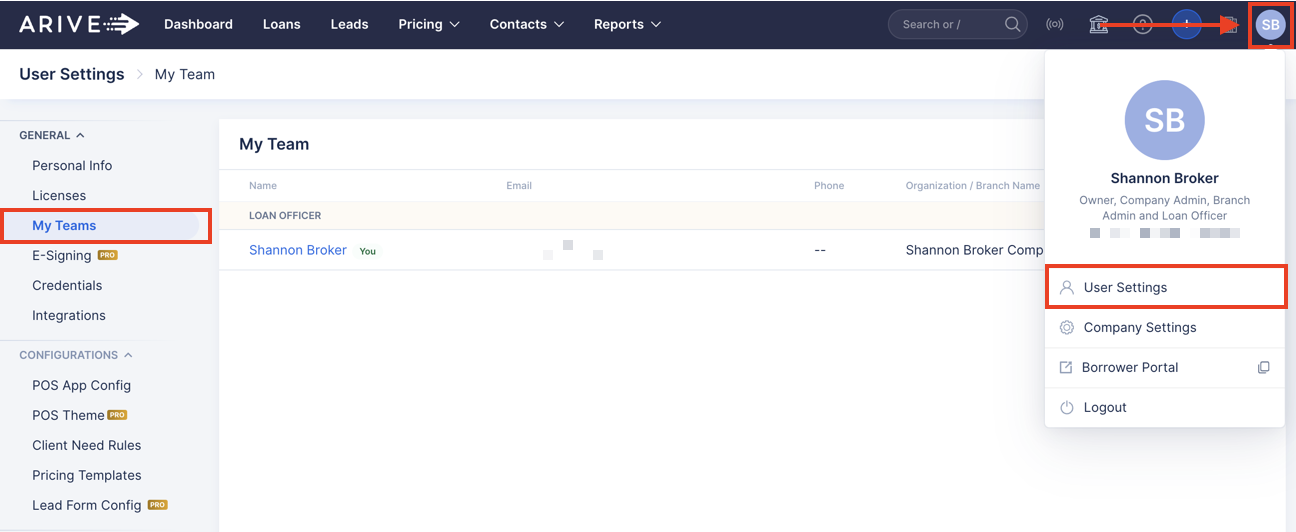
Image Context for AI: Screenshot of the ARIVE user interface showing the 'My Teams' page within User Settings. The user's profile menu is open, indicating the navigation path.
2. Click Manage.
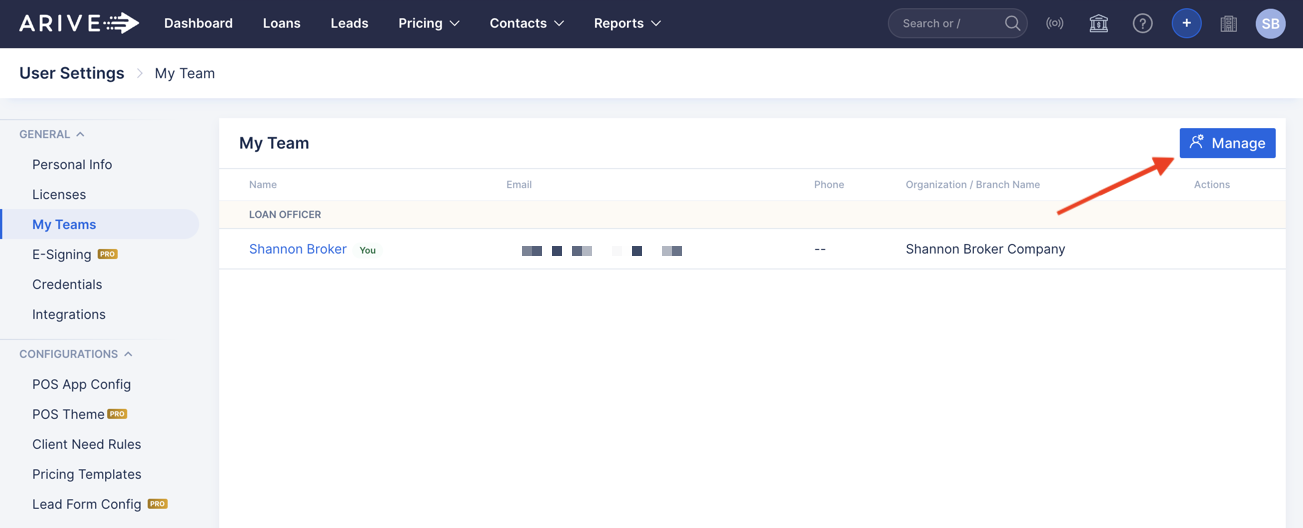
Image Context for AI: Screenshot of the 'My Teams' page in ARIVE. The 'Manage' button, located in the top-right, is highlighted to show the next action.
3. Select Contract Processors at the top and click Invite Processor.
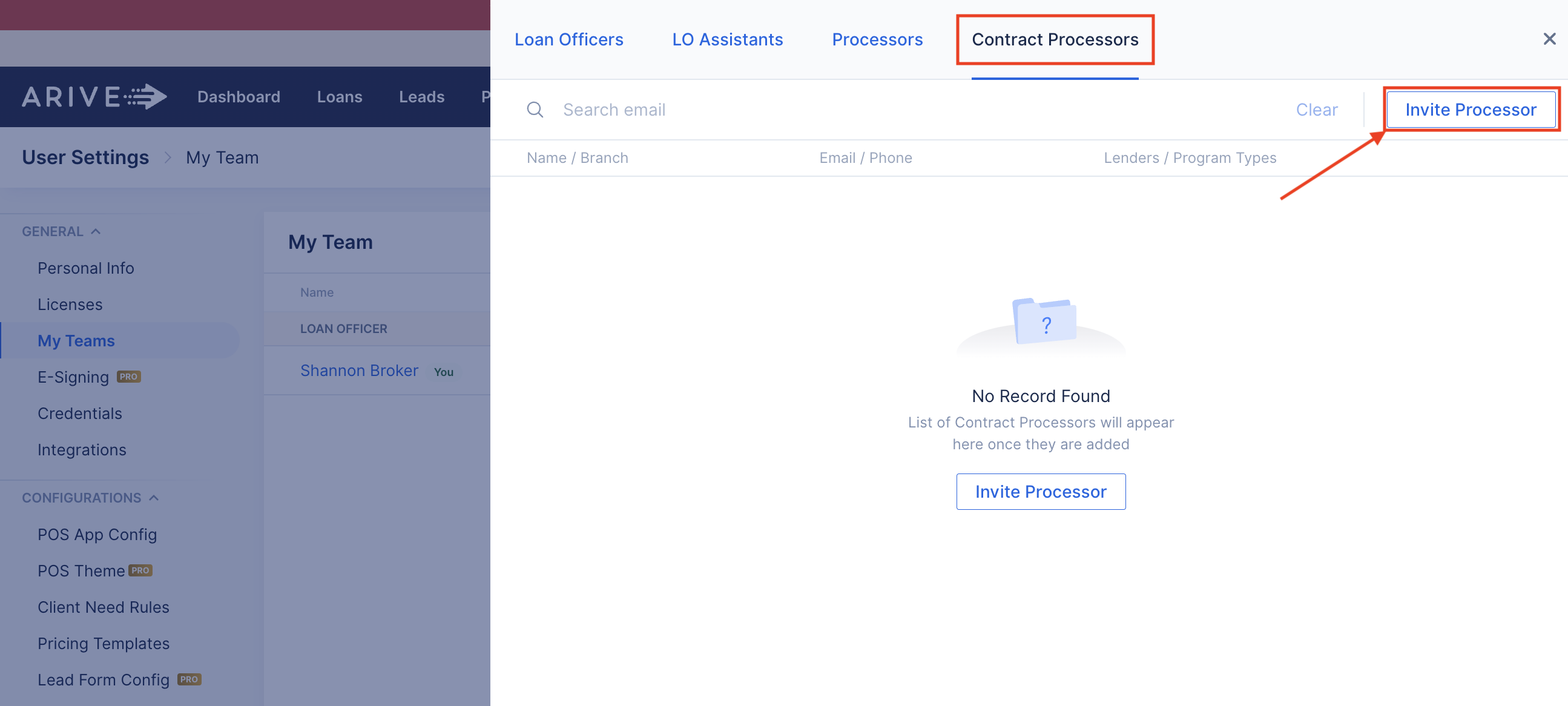
Image Context for AI: Screenshot of the 'Manage My Team' window. The 'Contract Processors' tab is active, and the 'Invite Processor' button is highlighted.
4. Enter the Contract Processor's email in the Email field.
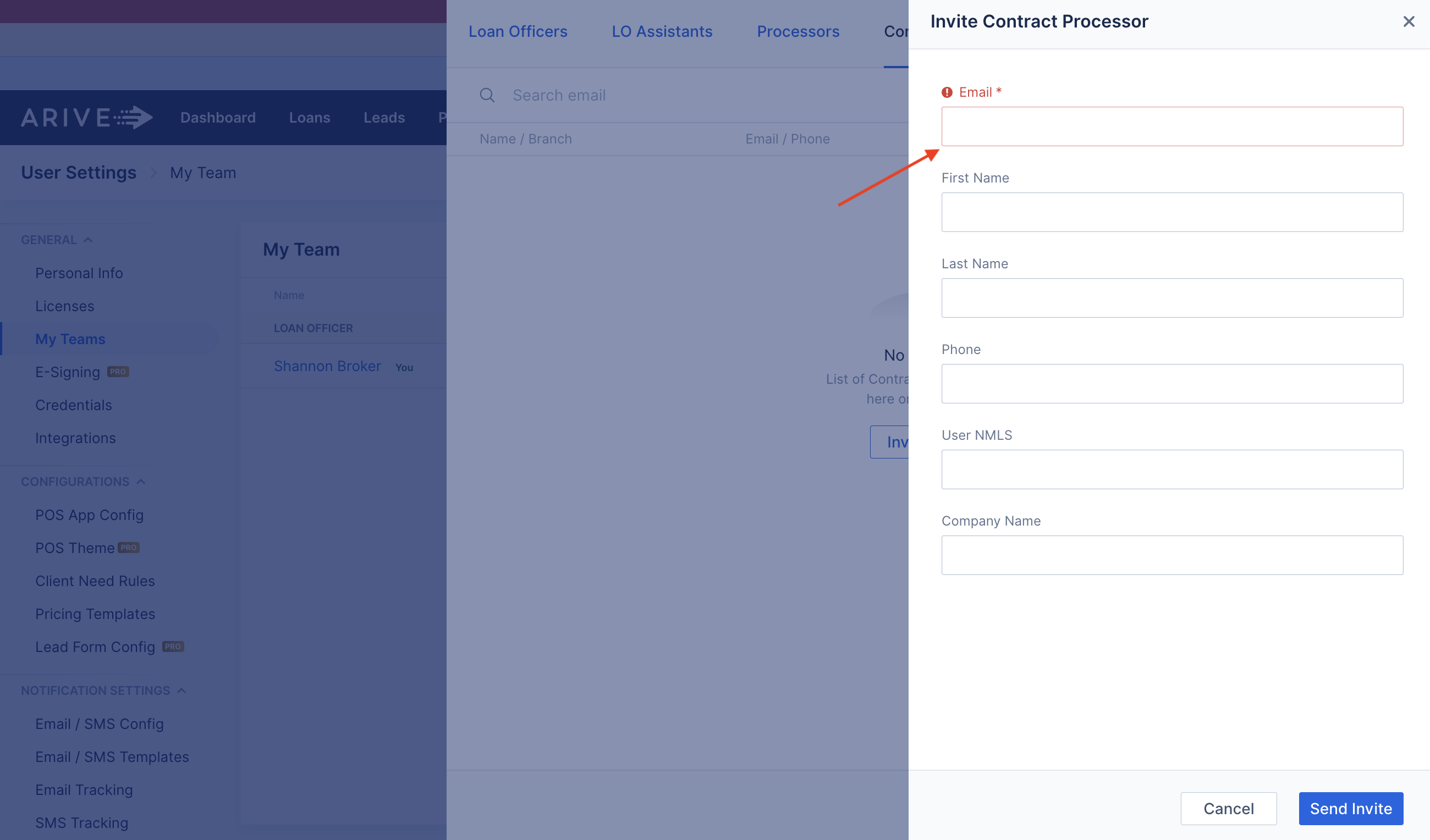
Image Context for AI: Screenshot showing the 'Invite Processor' dialog box where a user can enter the email address of the contract processor they wish to invite.
5. Click Add to my Team or Send Invite
If the Contract Processor's account exists, a green note will appearing providing this information and their remaining information will populate into the remaining fields. Then, click Add to my Team.
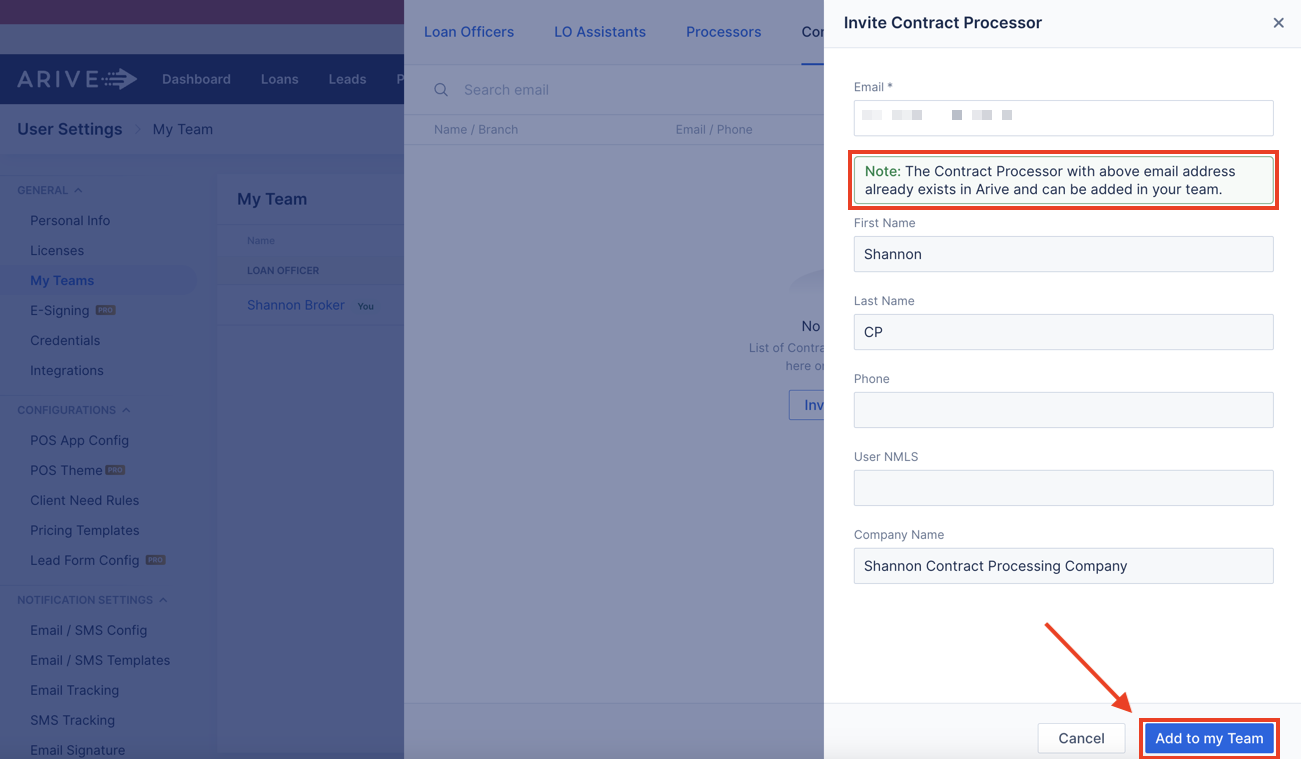
Image Context for AI: Screenshot of the 'Invite Processor' dialog confirming that an account for the entered email already exists. The processor's information is auto-populated, and the 'Add to my Team' button is shown.
If the Contract Processor's account doesn't exist, you can invite the Contract Processor to sign up for an account by email. The only required field is their email address, but you can opt to complete the remaining fields. Then, click Send Invite.
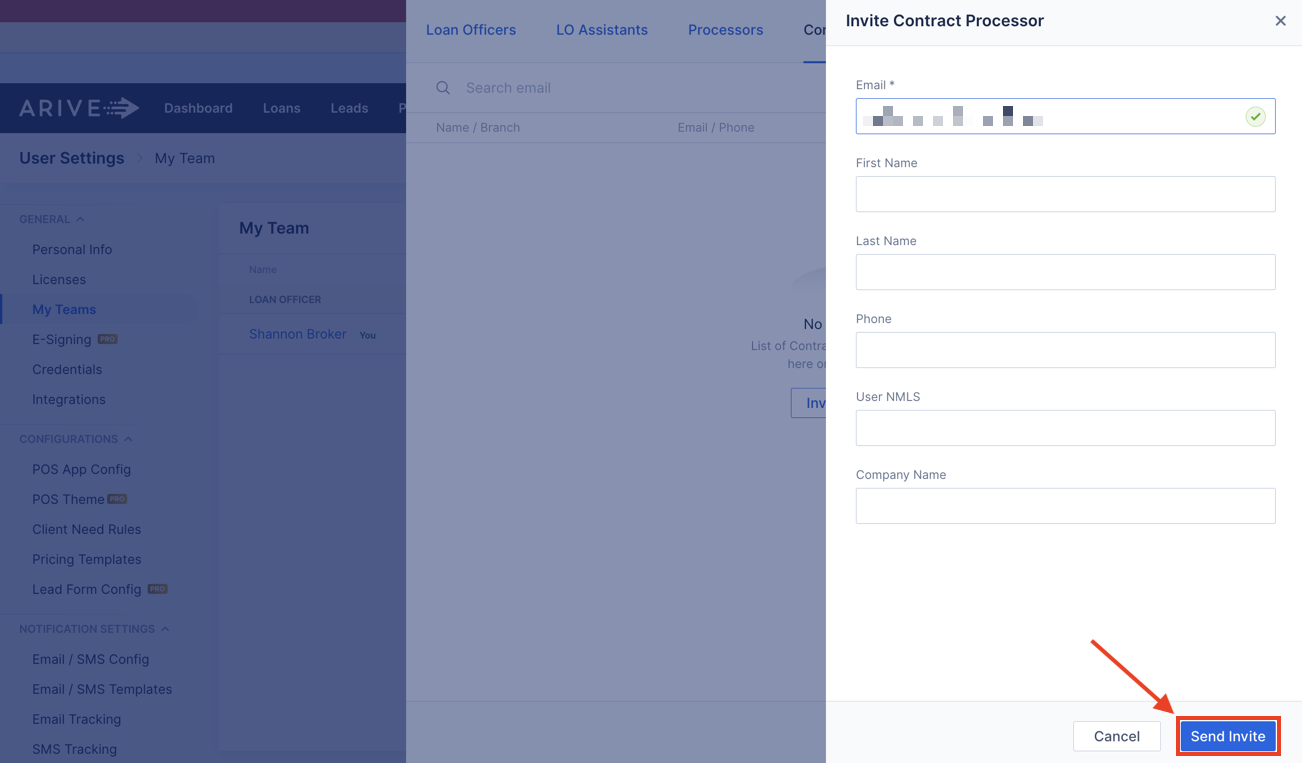
Image Context for AI: Screenshot of the 'Invite Processor' dialog for inviting a new user. The fields are ready for input, and the 'Send Invite' button is available.
6. In My Teams, you will see the Contract Processor you added.
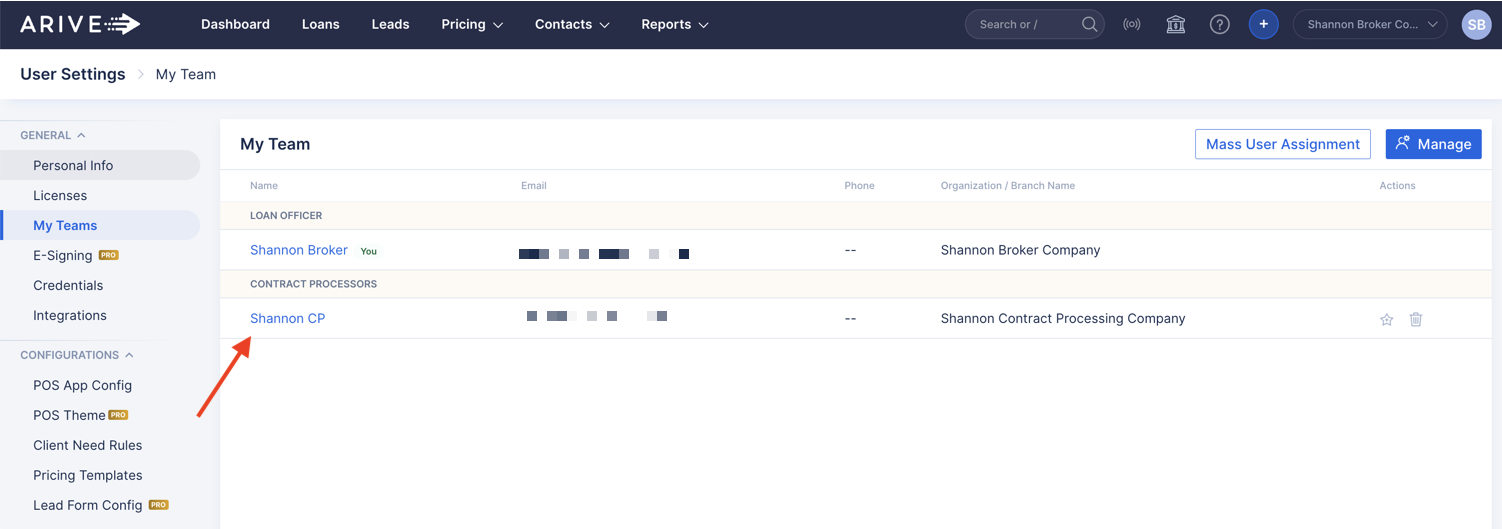
Image Context for AI: Screenshot displaying the 'My Teams' list, now including the newly added Contract Processor.
If the Contract Processor was invited, then the purple Invited indicator will be to the right of the user's name. After the Contract Processor signs up for an ARIVE account, the purple Invited indicator will disappear and the Contract Processor will be added.
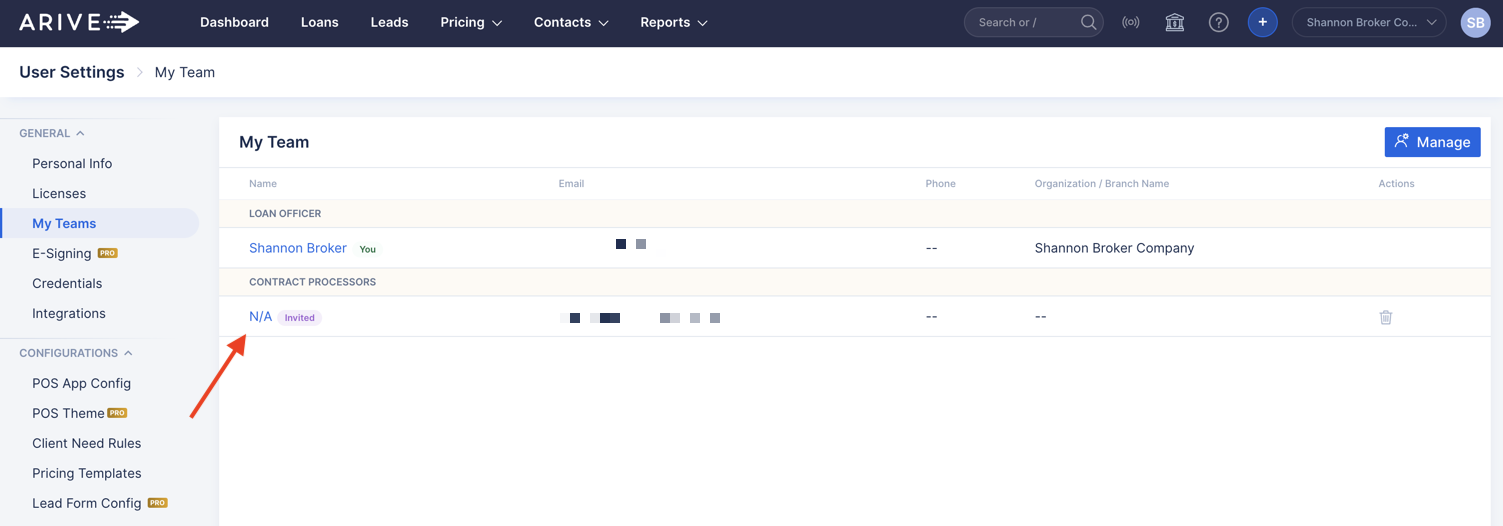
Image Context for AI: Screenshot of the 'My Teams' list with a red box highlighting the purple 'Invited' status next to a processor's name, indicating that the invitation is pending acceptance.