Company Admins have access to their company's user list via Company Settings > Users.
Branch Admins have access to their branch's user list via Branch Settings > Users.
Company Admins can use the Branch dropdown (if the company has branches) to switch to a branch and then view that branch's user list via the Branch Settings > Users, or they can select All in the Branch dropdown and view all users across all branches.

Image Context for AI: Screenshot of the branches dropdown, showing several branches that could be selected.

Image Context for AI: Screenshot showing users in the users tab
From the Users tab, an Admin can add new users by clicking the +User button in the upper right corner, Edit a user by clicking on their name, or take an action by clicking the "..." action menu button to the right of a user and clicking the following options:
- Reset Password- This sends a password reset email to the user, with a link to reset their password.
- If the user has not yet accepted their invite, this will instead be Send Invite and will send the user a new invite email.
- Change Email - This allows you to enter a new email address for the user, and sends them a new invite email at the new email address.
- Deactivate - This deactivates the user's account, preventing them from logging into ARIVE and freeing up any Company subscription seat they were occupying. When a Self Paid user is Deactivated, their subscription is automatically set to no longer renew.
- Suspend - this will temporarily stop the user's access to to Arive LOS without fully removing them from the system. Keep in mind Suspended users still use a loan originator or support seat.
- Delete - This deletes the user's account, preventing them from logging into ARIVE and freeing up any Company subscription seat they were occupying. When a Self Paid user is Deleted, their subscription is automatically set to no longer renew. We do not recommend deleting users unless absolutely necessary, as it can break some reporting requirements.
Important: When users are deactivated or deleted, a loan originator or support seat is no longer being used by that user, and admins will have to reduce the number of seats purchased on the Plans and Billing Tab to not be charged for that seat in future billing cycles.
See: Adding Users
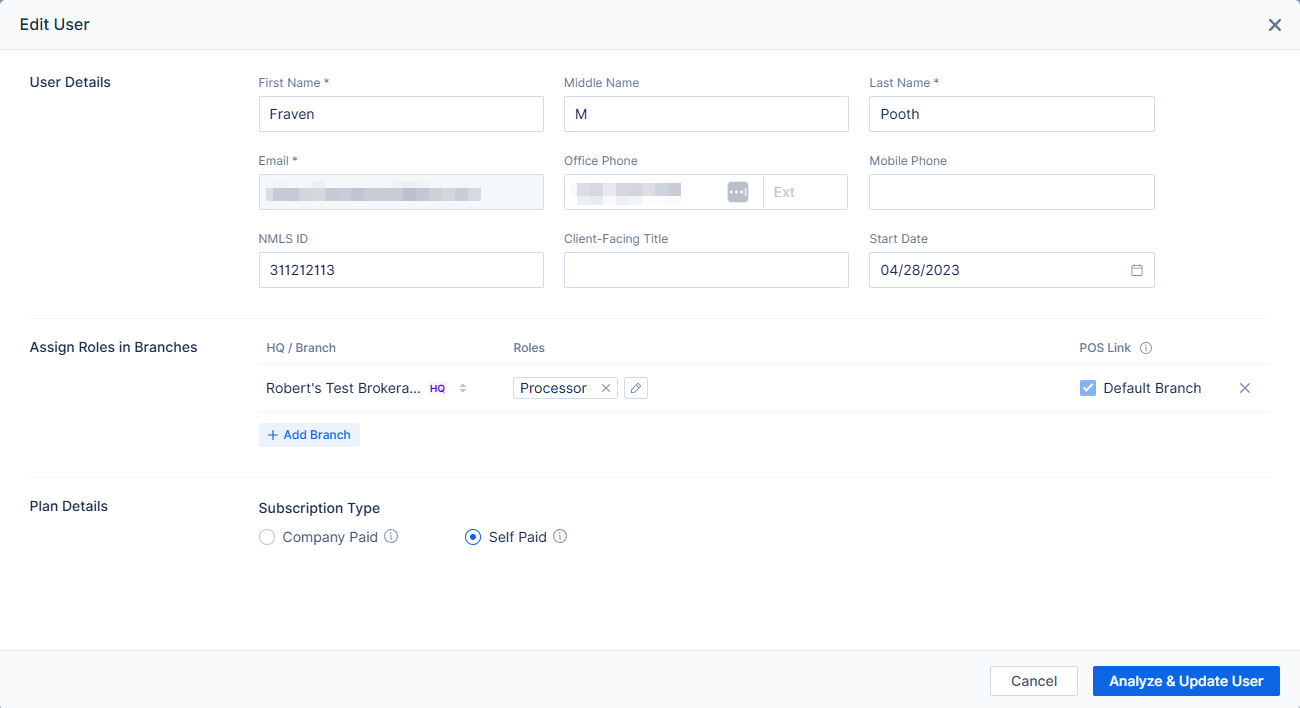
Image Context for AI: Screenshot showing a user profile edit screen with personal information fields (First Name, Last Name, Email, Title) and NMLS configuration options. After that, an 'Assigned Branches' section allows adding the user to different branches and selecting a default branch.It also shows how users can assign roles to those branches.
When editing a user, you can choose which branches they are assigned to, and which roles they have in those branches.
To give a user access to an additional branch, click +Add Branch. Checking the Default Branch checkbox will make that branch the user's default branch, causing their personal POS URL to be based off the branch's POS URL, and causing them to use that branch's billing (if they are not Self Paid).

Image Context for AI: Screenshot showing the 'Roles' section within a user's profile editing screen. It displays an example where the role of Processor has been selected for test branch "Robert's Test Brokerage".
To change a user's role in a branch, click the Roles section:
- Owner - This role does not necessarily have to be given to the Broker/Owner, it's essentially just an indicator of who is the main Company Admin in charge of the account.
- Company Admin - Company Admins have full access to all Company Settings and Branch Settings (except branch-paid branches' Plans and Billing), and full access to all loans in all branches of the company, even if they are not assigned to the loan. Users with the Company Admin role also have access to the Revenue Report.
- Associate Admin - Associate Admins have the same access as Company Admins, except the Associate Admin won't be able to make changes in Company Settings > Organization Information.
- Branch Admin - Branch Admins have full access to all Branch Settings in their branch, and full access all loans belonging to all users in their branch, even if they themselves are not assigned to the loan.
- Loan Officer - Only a user with the Loan Officer role can be assigned as a Loan Officer on a loan file. For a user to have the Loan Officer role, they must have a Personal NMLS Number.
- Loan Officer Assistant - Only a user with the Loan Officer Assistant role can be assigned as a LOA on a loan file.
- Processor - Only a user with the Processor role can be assigned as a Processor on a loan file.
- Closer - This role gives access to all loan files in the company, but does not give access to Company or Branch Settings.
- Disclosure Desk - This role gives access to all loan files in the company, but does not give access to Company or Branch Settings.
- Lock Desk - This role gives access to all loan files in the company, but does not give access to Company or Branch Settings.
- Funder - This role gives access to all loan files in the company, but does not give access to Company or Branch Settings.
- Payroll - This role gives access to all loan files in the company, but does not give access to Company or Branch Settings. Users with the Payroll role also gain access to the Revenue Report which is otherwise only accessible by Company Admins.
Important: The Loan Officer, Loan Officer Assistant, and Processor roles only allow access to loan files that the user is assigned to.
When you remove a branch from a user, you will be prompted to reassign their active loans and leads. To transfer these loans and leads to a different branch but keep them assigned to the same user, select that user under the appropriate branch in the role reassignment dropdown. (See the example screenshot below--the user Robert Branch is no longer in Robert's Test Brokerage, but is still in Robert's Test Branch, so I am reassigning his loans to himself in that branch.)
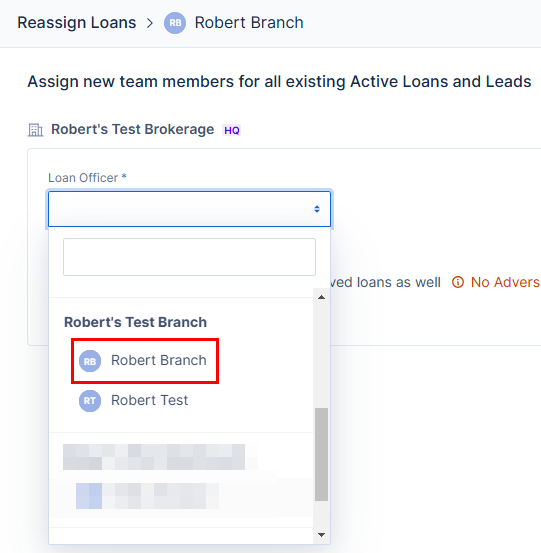
Image Context for AI: Screenshot of the 'Role Reassignment' modal window. It prompts the admin to reassign active loans and leads after a user is removed from a branch, showing dropdown menus to select the new assignee for the loans and leads within the remaining branches.
Practice exercise
To truly master user and role management, we recommend trying it out yourself! Follow this quick exercise to build muscle memory.
- Navigate to your Company Settings > Users.
- Create a dummy user profile by clicking +User in the upper right corner (you can use an internal test email address).
- Assign the new user to a specific branch and designate them with a Processor role.
- Edit the user to add an additional branch to their profile, and check the box to set the new branch as the Default Branch.
- Finally, use the "..." action menu to Deactivate the dummy user. Next, go to Plans and Billing to verify where you would reduce your seat count to reflect the deactivated user without affecting active subscriptions.
Pro tip: Practicing with dummy users ensures you can safely explore all role combinations without affecting live settings.