
Learn how to set up, configure, and maximize the value of the Bulk Lead Importer.
Video Context for AI: A 2 minute video walking the user through download the lead import template file, uploading it to the leads importer, and starting the lead import.
Overview
Leads can be imported in bulk up to 1,000 lead records at a time. This method is ideal for organizations or individual Loan Officers who need to migrate large quantities of leads into ARIVE. This article provides step-by-step instructions for downloading the required template, adding your lead data, and importing the file.
Note: It's extremely important that you follow these instructions exactly to successfully import leads. Any changes to the sample file outside of entering the lead data in the proper format will cause import issues.
Downloading the Template
Follow these steps to get the lead import template:
- Navigate to Leads at the top of your screen.
- Click the Import button in the upper right corner.
- In the popup screen, click Download sample file in the lower left corner. The file will be an .xlsx file named LeadsSample.xlsx.
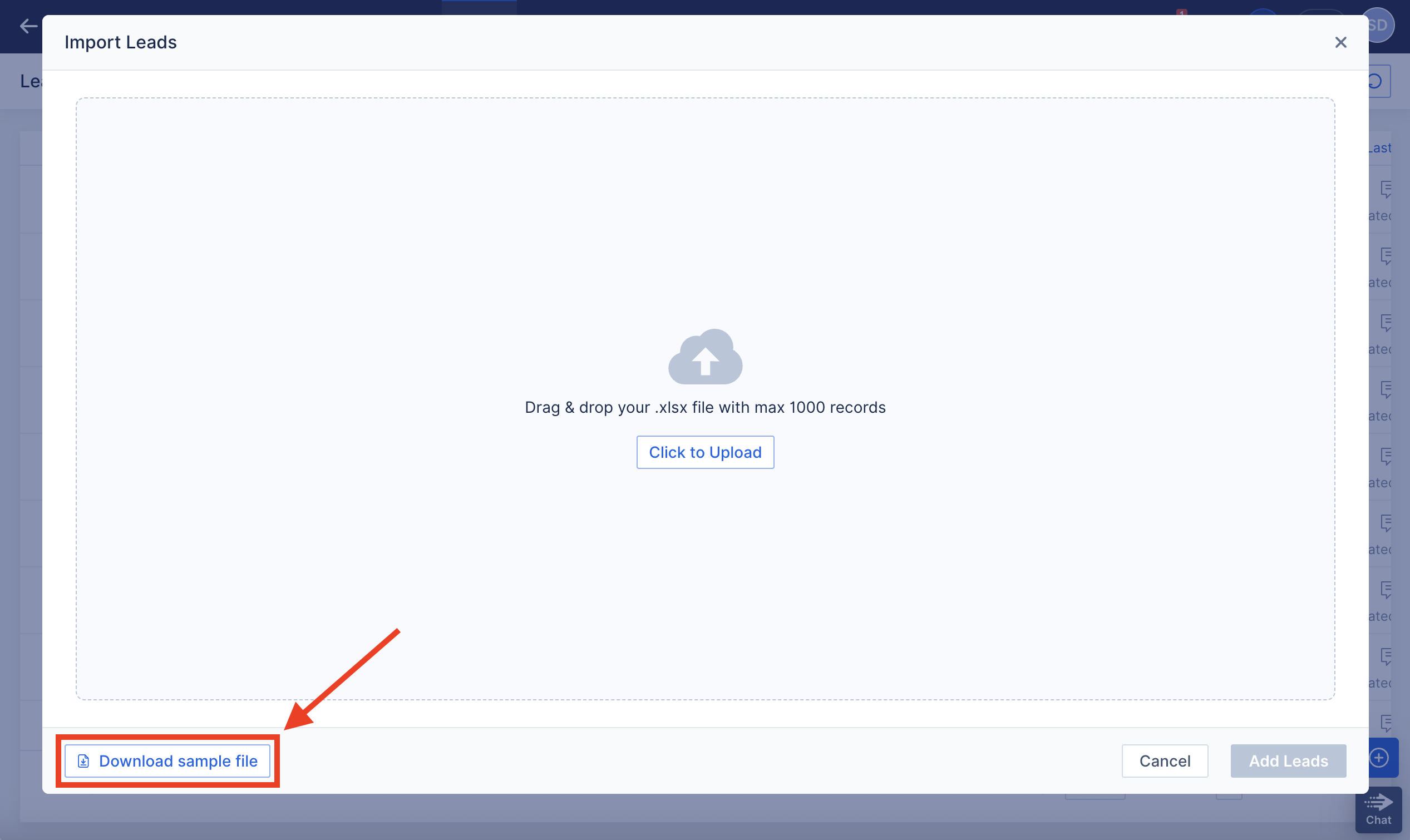
Image Context for AI: Screenshot of the "Import Leads" modal window. The "Download sample file" link is highlighted in the bottom-left corner.
Populating and Uploading Your File
To add your leads and complete the import:
- Locate and open the downloaded LeadsSample.xlsx file on your device.
- Add your lead data to the file, starting in cell A2. Ensure that First Name, Last Name, and Email are filled for every record.
- Save the file once you are finished.
- Navigate back to Leads > Import, and either drag and drop your file or click to upload it.
- Review any warnings about formatting issues. You can either cancel to fix them or proceed with the import.
- Click Add Leads to complete the import.
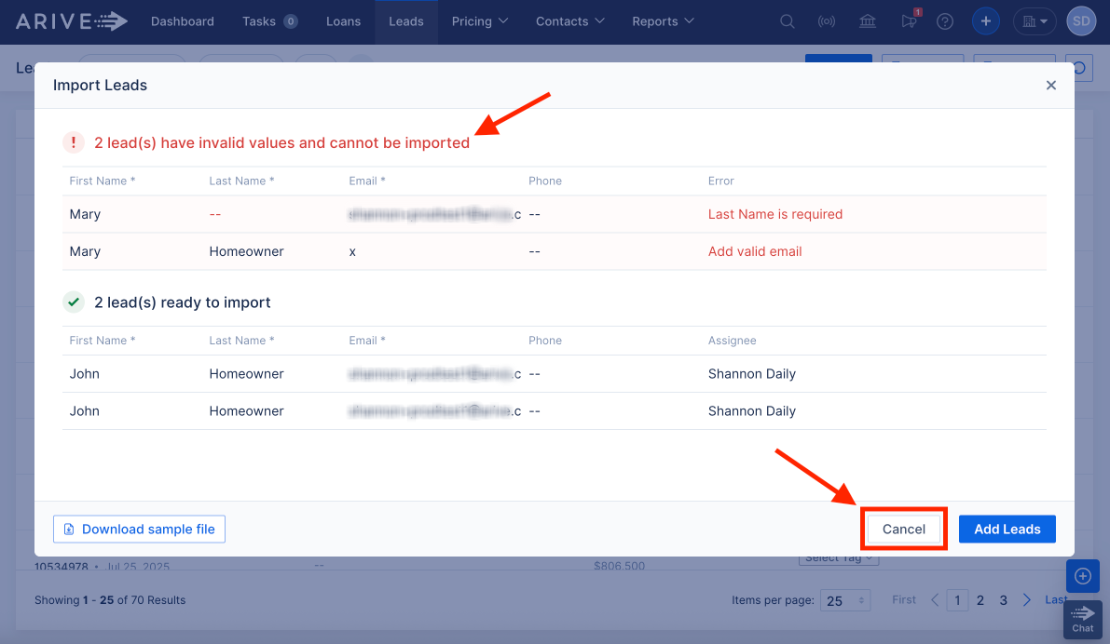
Image Context for AI: Screenshot of the import process after a file has been uploaded. A warning message indicates that "2 leads have issues and won't be imported."
Practice exercise
Test your knowledge in a safe environment
To truly master this feature, we recommend trying it out yourself! Follow this quick exercise to build muscle memory.
- Log into your sandbox or test environment.
- Prepare a small test file with 2-3 dummy leads using the LeadsSample.xlsx template.
- Import the test file using the steps outlined above.
- Verify the new leads appear correctly in your Leads dashboard.
Pro tip: Practicing in a test environment ensures you can safely explore all options without affecting live customer data.
Troubleshooting and best practices
Best practices
- Do not make any changes to the sample file's structure. Only add your lead data below the column headers.
- Follow the data format required for each column. Check the "Data List" sheet in the Excel file for accepted values (e.g., for "Lead Status").
- Phone numbers must only contain numerical digits. Do not include dashes, parentheses, or other special characters.
- Do not add more than 1,000 lead records to a single file.
- Always double-check your data inputs before clicking Add Leads.
Troubleshooting
If you encounter an error message during import:
- The system will warn you about specific records with formatting or data issues. Click Cancel, correct the rows in your file, and re-upload.
- Ensure your file is saved in .xlsx or .csv format.
- Verify your internet connection and refresh the browser page.
FAQs
What happens if my file has errors?
The system will still import all the valid lead records but will skip any rows that contain errors. You will see a warning message that specifies how many leads could not be imported. It's best to cancel, fix the errors, and re-upload the file to ensure all leads are imported.
Can I undo a bulk import?
No, a bulk import cannot be undone automatically. You would need to manually find and delete the imported leads from the Leads page. We strongly recommend testing with a small file of dummy leads first.