
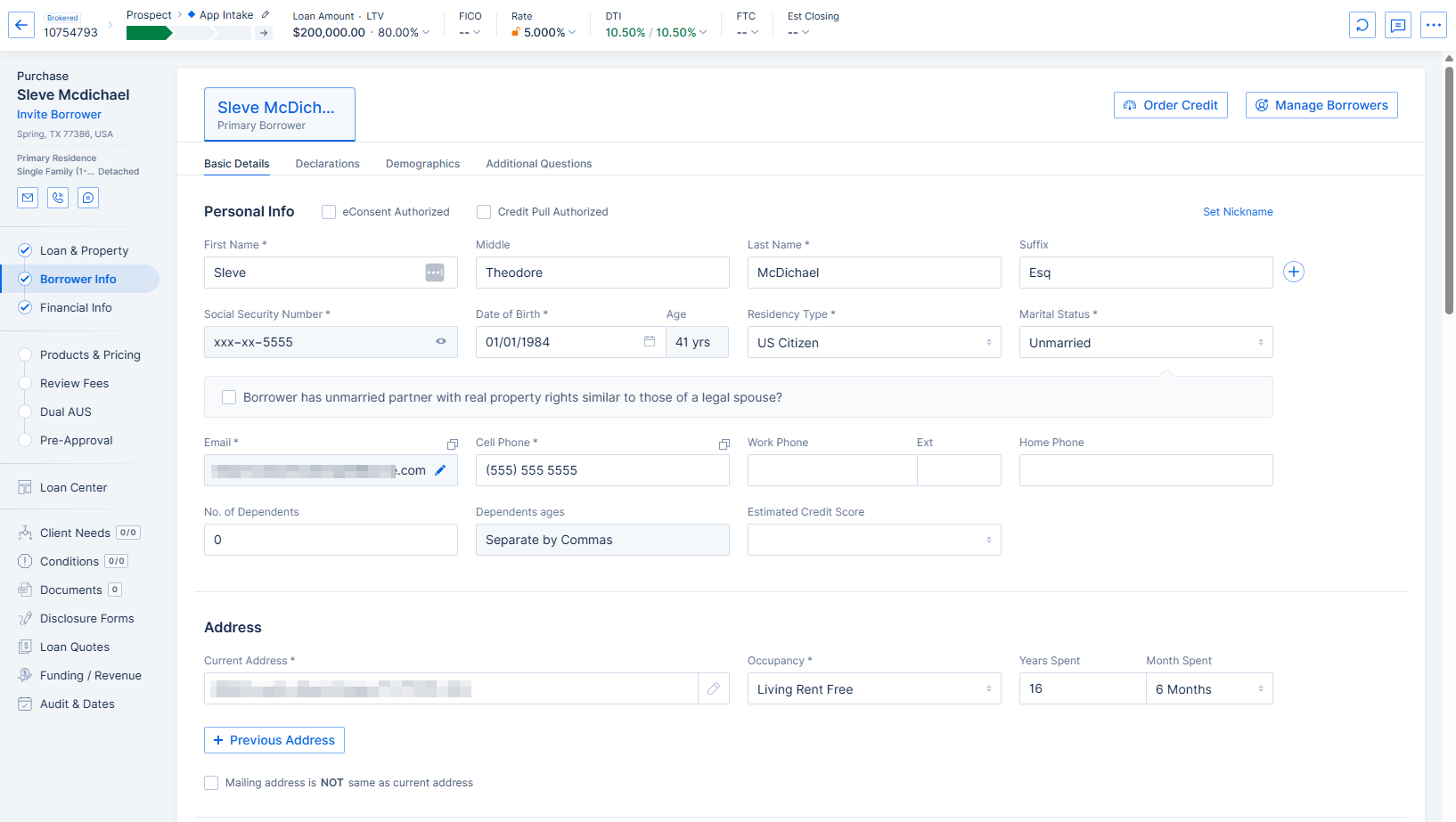
Image Context for AI: Screenshot of the loan file interface, highlighting the 'Borrower Info' tab. This tab contains sections for personal information, declarations, and demographic details.
The Borrower Info tab of a loan file contains the borrower's personal info, declarations, demographic info, and any Custom Questions added to the POS.
Important: If one or more borrowers have unexpectedly disappeared from the loan file, click the Refresh Loan button in the upper right corner (next to the Loan Notes button). This should cause any missing borrowers to reappear.
In the top right corner of this tab, click the Manage Borrowers button to add or remove borrowers, link them in the same 1003, break them into separate 1003s, and change the roles of co-borrowers and other additional borrowers.

Image Context for AI: Screenshot highlighting the 'Manage Borrowers' button in the upper right corner of the Borrower Info tab. This button is used to add, remove, or change the roles of borrowers.
At the top of the Personal Info section are checkboxes for eConsent and Credit authorization. If the borrower has provided consent through the POS, these will already be checked.

Image Context for AI: Screenshot of the 'Personal Info' section, focusing on the 'eConsent' and 'Credit authorization' checkboxes. The text explains that checking these boxes prompts for the method of consent.
When you check one of these boxes, you are prompted to select how you received the consent (email, face to face, telephone, etc.).
Above and to the right of the borrower's name is the Set Nickname button which allows you to enter a name the borrower goes by other than their legal name. Nickname is one of the information tags that can be used when customizing your Email Templates, if you want your emails to address borrowers by their nickname instead of their legal name.
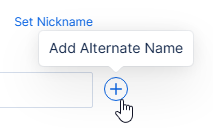
Image Context for AI: Screenshot showing the borrower's name section with the 'Set Nickname' button highlighted. This feature allows users to add a nickname for the borrower.
You can also click Add Alternate Name to add an entire alternate name, first last middle and suffix.

Image Context for AI: Screenshot highlighting the 'Add Alternate Name' button, which allows for adding a complete alternate name for the borrower.
If you need to enter a foreign address (or an address not recognized by Google Maps) as the borrower's current address, click the pencil icon to the right of the Current Address field to open the full address window.
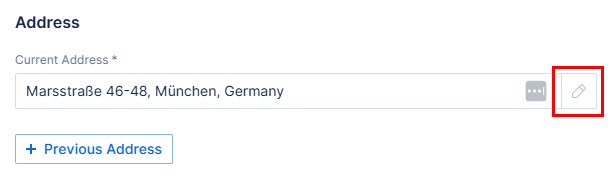
Image Context for AI: Screenshot of the 'Current Address' field, with the pencil icon to the right highlighted. This icon opens the full address window for manual entry.
This will allow you to manually enter the address.
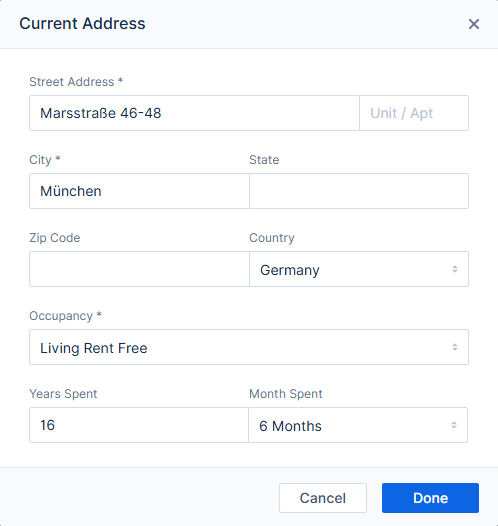
Image Context for AI: Screenshot of the manual address entry modal, which appears after clicking the pencil icon. It includes fields for Country, Address, Unit, City, State, and Zip for entering foreign or non-standard addresses.
To enter a dependent less than 1 year old, round up their age to 1.

Image Context for AI: Screenshot of the 'Dependents' section, showing how to enter a dependent's age. The example shows the age set to '1' for a dependent less than one year old.
The Military Info section allows you to select the borrower's military service history, and the Homeownership Education and Housing Counselling section allows you to enter that information, which will flow to the Fannie Mae/Freddie Mac Form 1103 Supplemental Consumer Information Form (SCIF) which is part of the 1003 when you generate it.
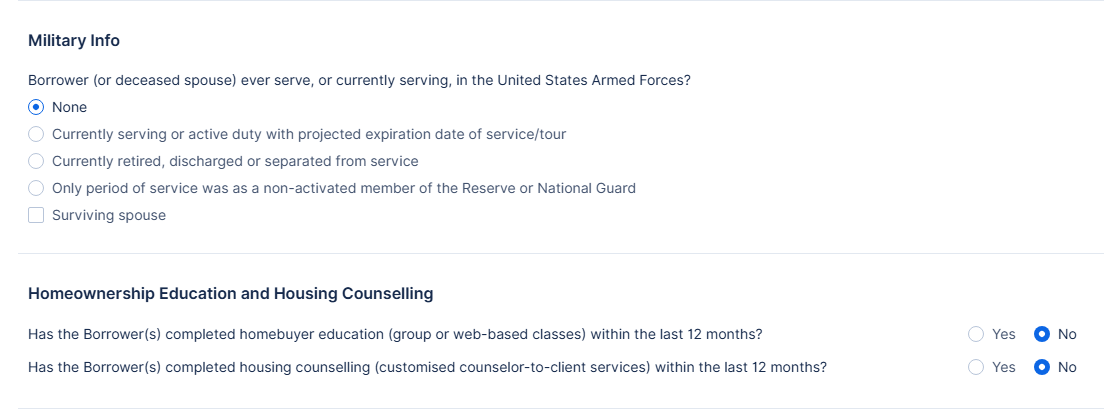
Image Context for AI: Screenshot displaying the 'Military Info' and 'Homeownership Education and Housing Counselling' sections. These sections are used to record the borrower's military service and education details, which flow to the SCIF.
The Declarations section lists the following questions and the borrower's answers to them.
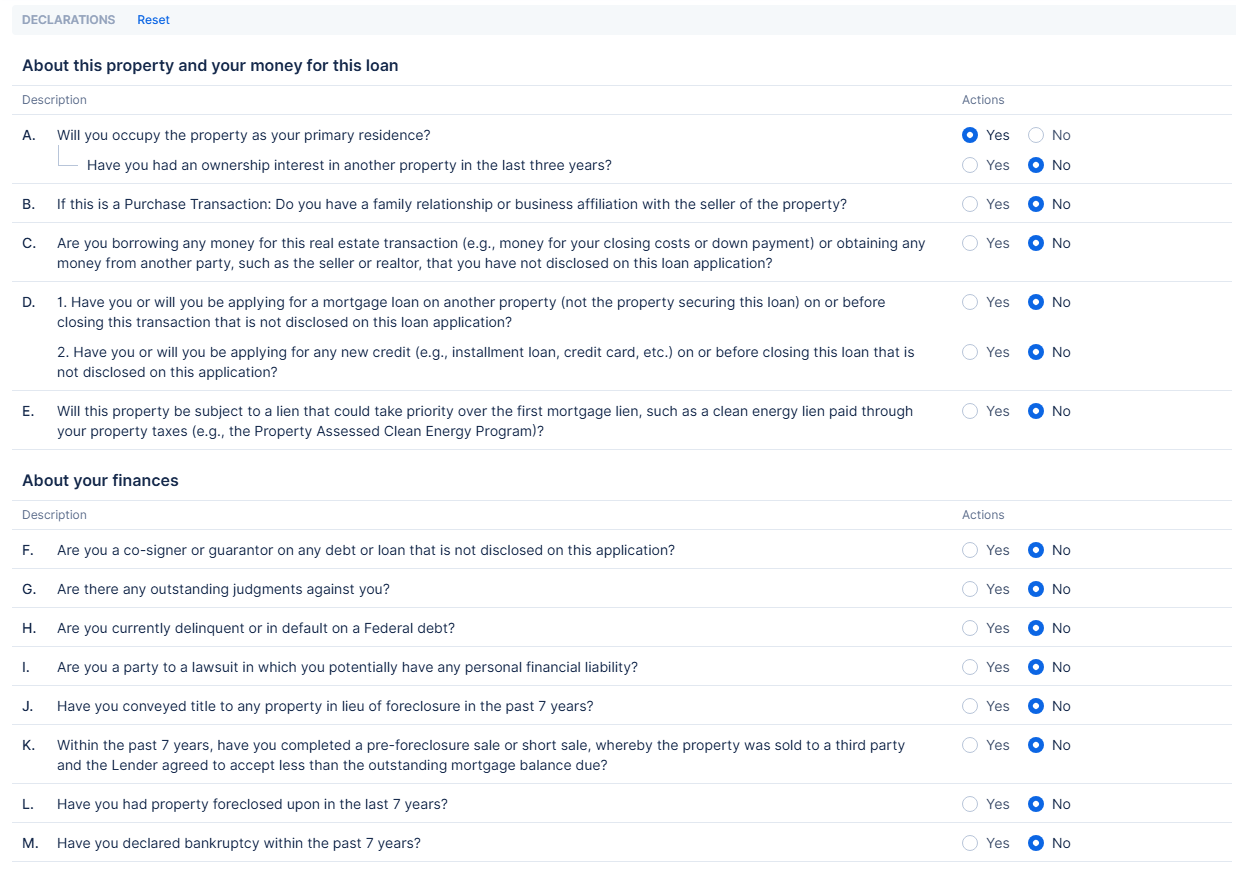
Image Context for AI: Screenshot showing the top of the 'Declarations' section, which lists questions A through E with 'Yes' and 'No' options for the borrower's answers.
Declaration A part 1 must be set to Yes for a Primary Residence, and part 2 must be set to No for the borrower to be considered a First-Time Homebuyer. (This will cause the First-Time Homebuyer checkbox to be checked in the Products & Pricing tab.)
If the borrower's answer is Yes to any of the declarations F through M, you will need to select an LPA Explanation Description Type and enter a DU Policy Feature Description in order to be able to successfully run AUS on the file.

Image Context for AI: Screenshot of the lower 'Declarations' section (F-M). It shows an example where a 'Yes' answer to a declaration requires an explanation for AUS processing.
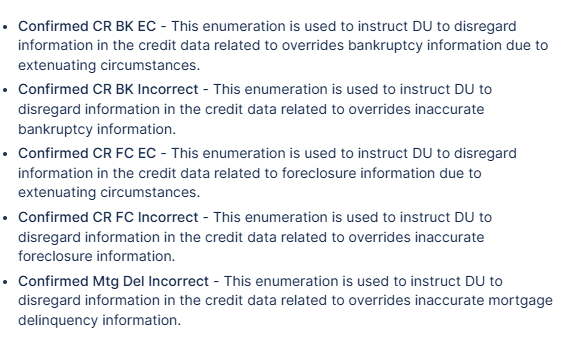
Image Context for AI: Screenshot of the explanation fields ('LPA Explanation Description Type' and 'DU Policy Feature Description') that appear when a 'Yes' answer is given to declarations F through M.
Further down is the Demographics section where you will record the borrower's demographics information.
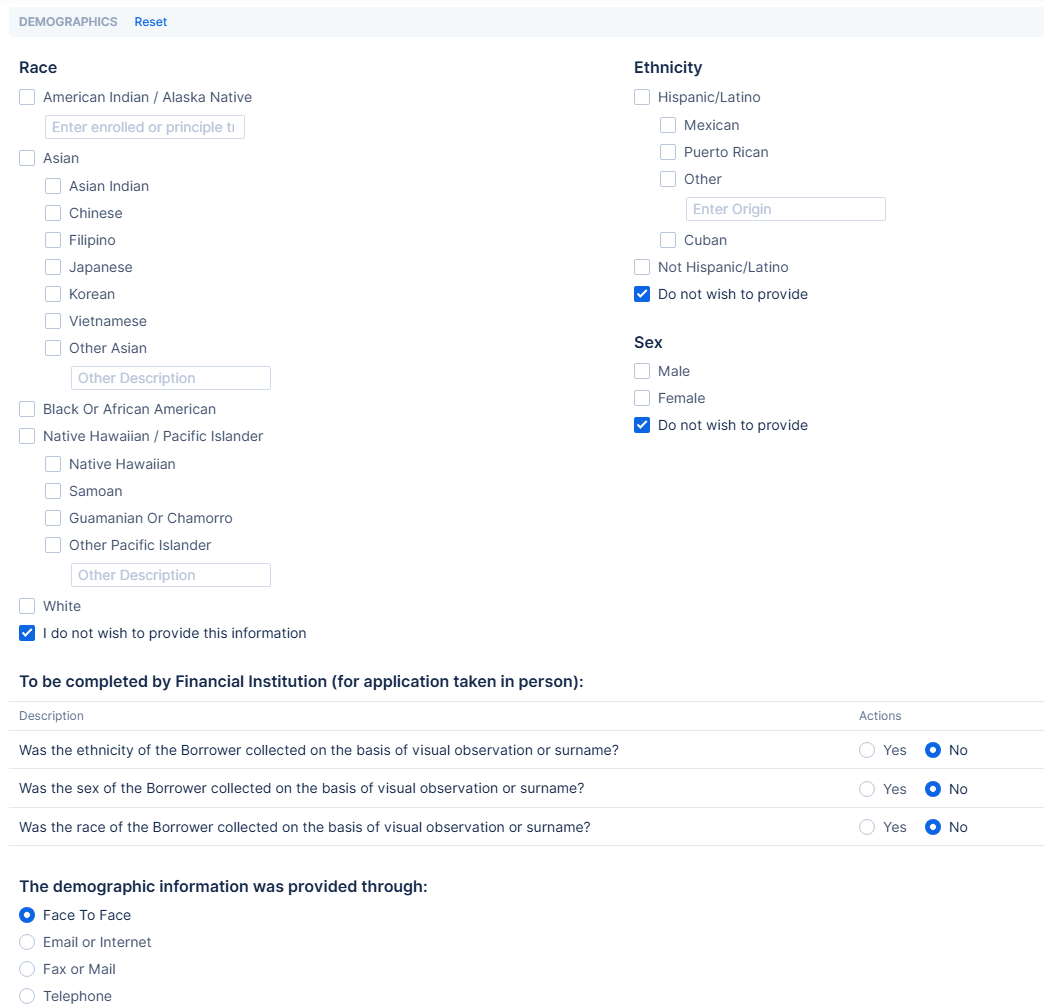
Image Context for AI: Screenshot of the 'Demographics' section, where the borrower's ethnicity, race, and sex are recorded. It also shows the option for the borrower to decline providing this information.
At the bottom of the Borrower Info tab you'll find the Additional Questions section, if your company has added any Custom Questions to your POS.
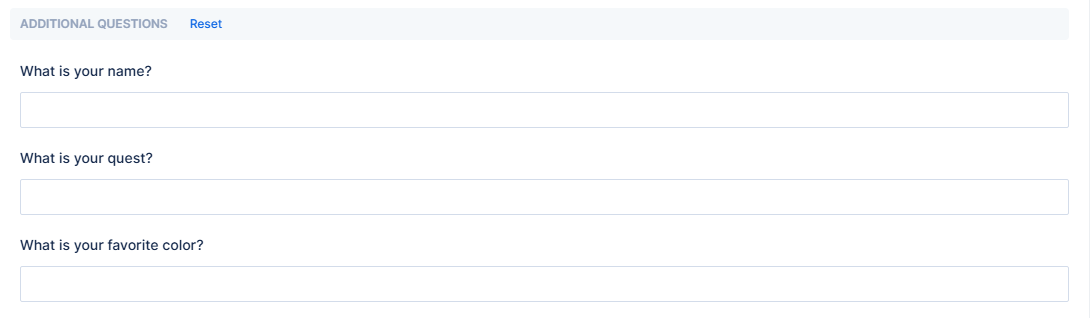
Image Context for AI: Screenshot of the 'Additional Questions' section, located at the bottom of the Borrower Info tab. This area displays any custom questions that have been added to the Point of Sale (POS) system.