
Learn how to accurately enter borrower financial information to ensure a smooth automated underwriting process.
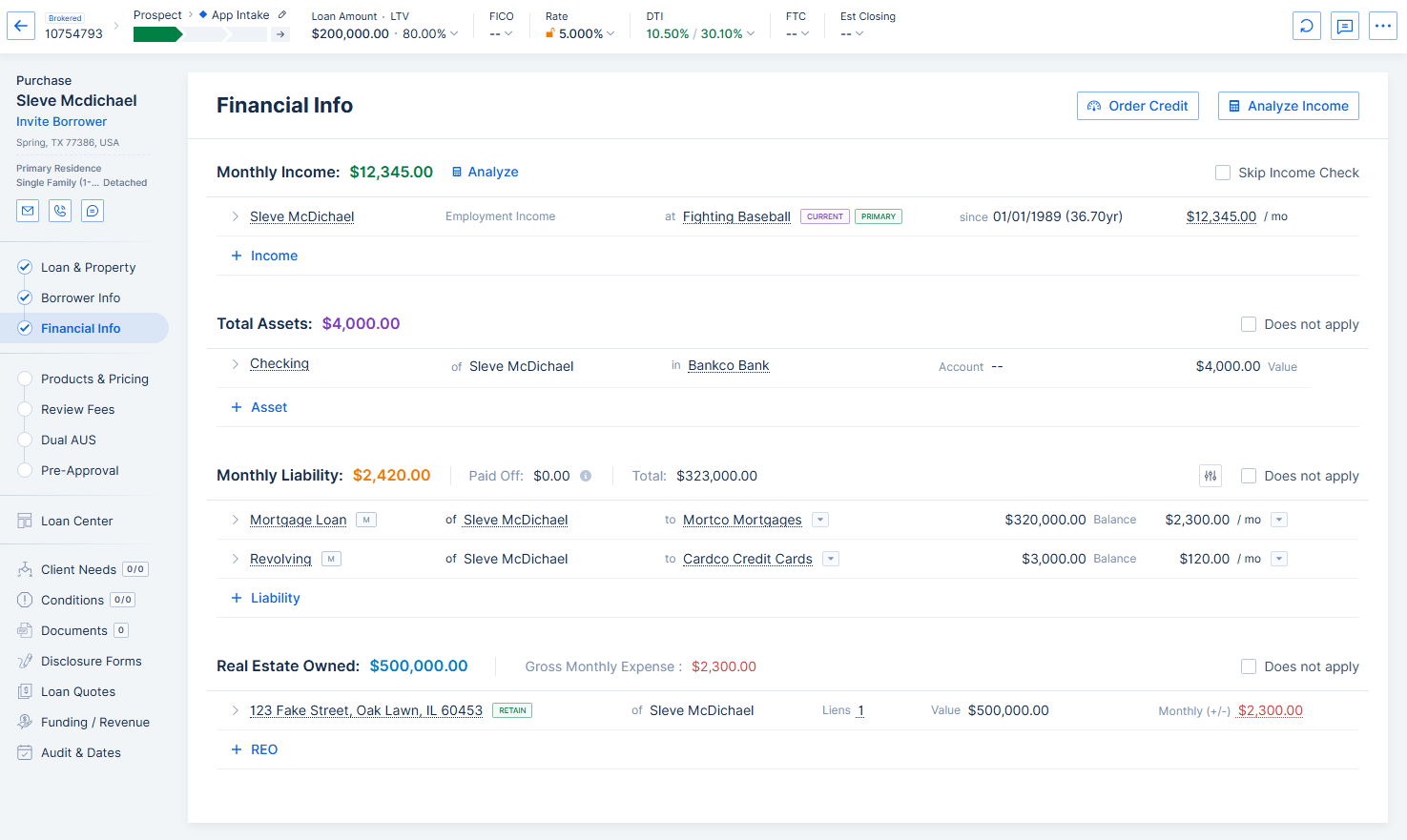
Image Context for AI: Screenshot showing the 'Financial Info' tab of the application. The sub-tabs 'Income', 'Assets', 'Liabilities', and 'REO' are visible. This image provides a general orientation to the financial information section.
The Financial Info tab contains information about the borrower's income/employment, assets, liabilities, and real estate owned (REO).
In order to accurately run AUS, it is critically important that all of this information is entered accurately. For more details on how this financial information is read by AUS, refer to the Fannie Mae Selling Guide.
Income
When entering the borrower's income, make sure to select the correct Income Type from the dropdown. Some income types require additional information, some only require a description and monthly income amount.
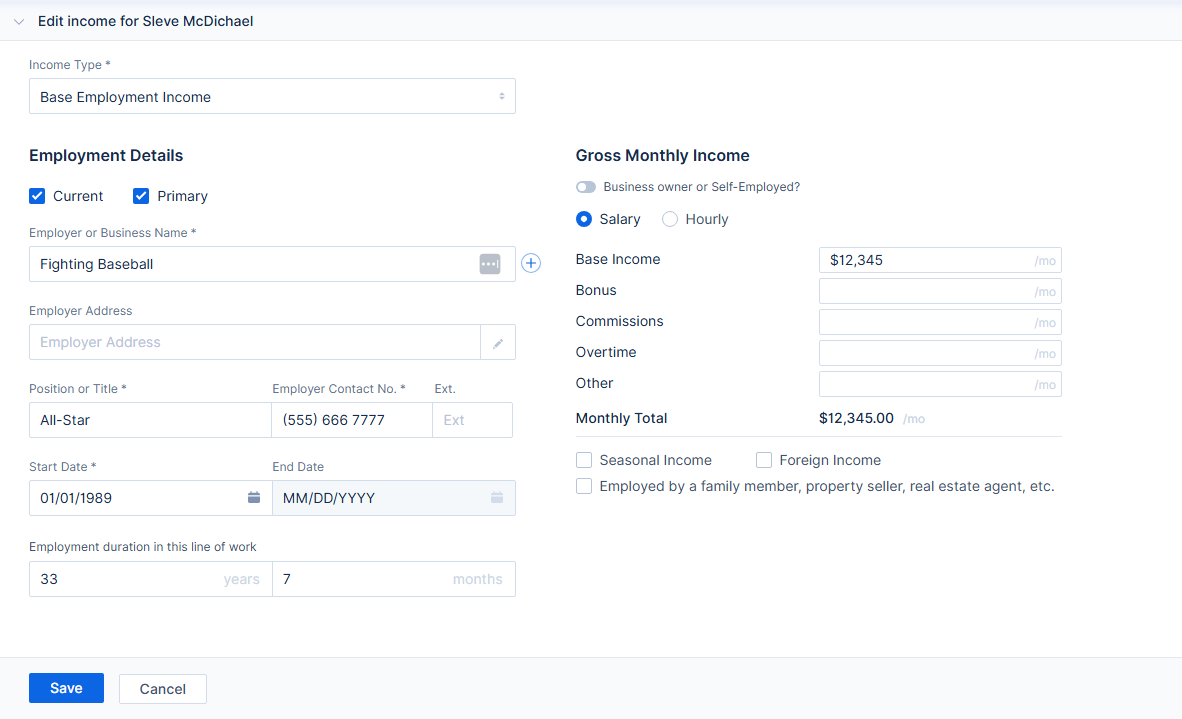
Image Context for AI: Screenshot of the 'Income' entry section. It shows fields for employer details and an expanded 'Income Type' dropdown menu with options like 'Base', 'Bonus', 'Overtime', etc.
For borrowers who are business owners or self-employed, click the Business owner or Self-Employed? slider button.
- If their ownership share is equal or greater than 25%, click the Self employed ownership is equal to or greater than 25%? slider button. You will then select the tax form used to report their self employment income; Schedule C, Schedule C-EZ, Form 1065, Form 1120, or Form 1120S.
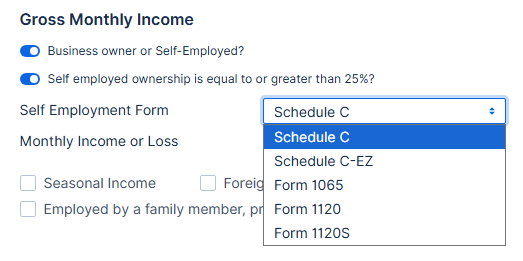
Image Context for AI: Screenshot displaying the options for a self-employed borrower. It shows the sliders for 'Business owner or Self-Employed?' and 'Self employed ownership is equal to or greater than 25%?', along with a dropdown for selecting the relevant tax form.
To skip income validation, check the Skip Income Check checkbox in the upper right corner.
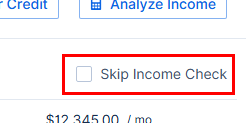
Image Context for AI: A close-up screenshot of the upper right corner of the Income section, highlighting the 'Skip Income Check' checkbox. This is used to bypass income validation.
Assets
When entering assets, be sure to select the correct Asset Type from the dropdown.
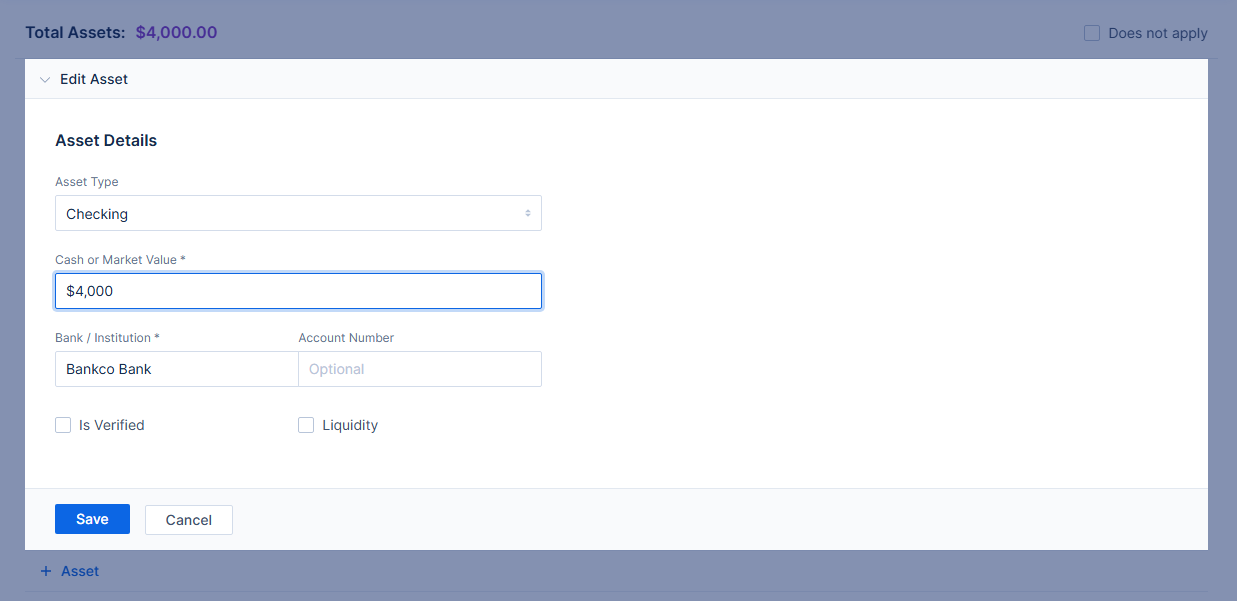
Image Context for AI: Screenshot of the 'Assets' entry section. It shows fields for asset details and an expanded 'Asset Type' dropdown menu with options like 'Checking Account', 'Savings Account', 'Gift Funds', etc.
Account Numbers are optional for assets, but if running LP/LPA you are likely to get a warning message about account numbers being missing.
For some asset types like Gift Cash, there is a dropdown to select Deposited / Non-Deposited.
- If Deposited is selected, DU will not count the amount towards the total available assets (as it is assumed that this amount is already reflected in the borrower's Checking or Savings account balance).
- If Non-Deposited is selected, DU will count the amount towards the total available assets.
The Is Verified checkbox indicates that the asset has been sourced and verified (e.g., bank statements, VOD, or automated verification like VOA through services such as AccountChek).
The Liquidity checkbox identifies whether the asset is considered liquid and readily available for use toward down payment, closing costs, or reserves.
If you have any questions about why an asset is or is not being counted by AUS, refer to the Fannie Mae Selling Guide.
Liabilities
Liabilities can be entered manually, or imported when running credit. As with the above, it is essential to ensure that the correct Liability Type is selected.
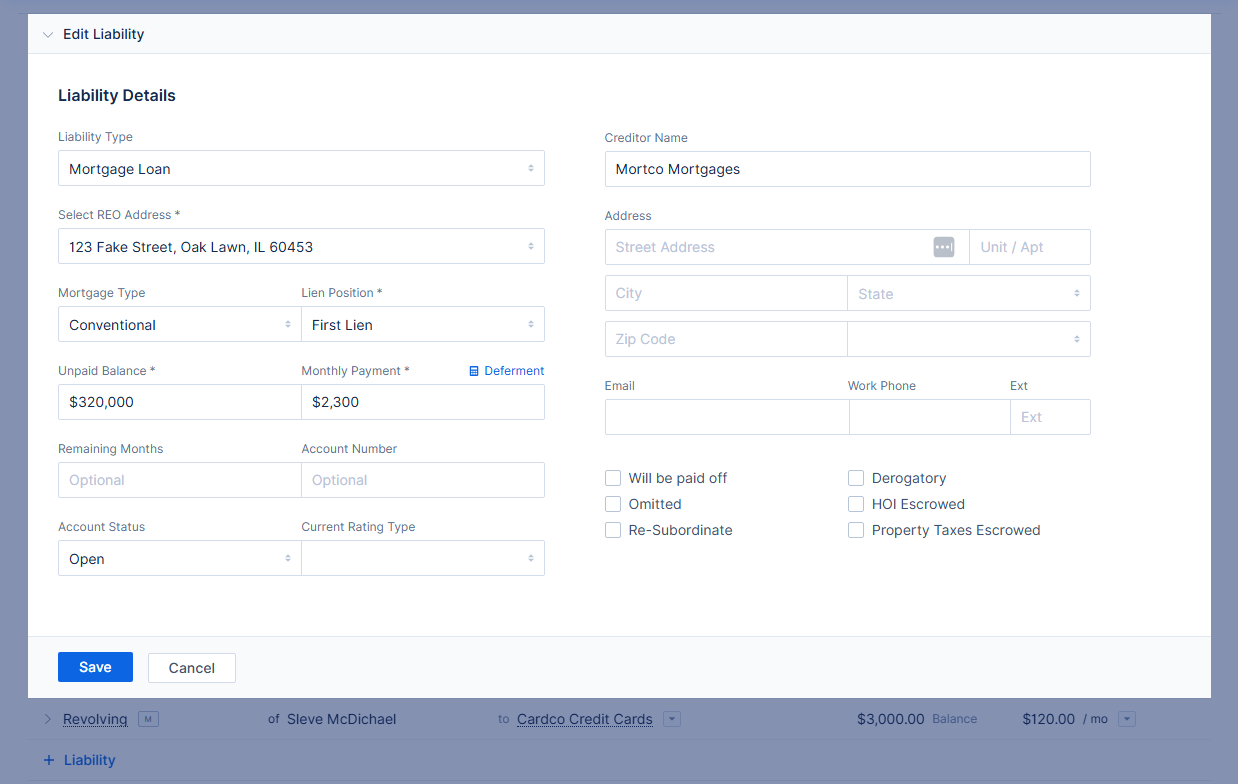
Image Context for AI: Screenshot of the 'Liabilities' entry section. It shows an expanded 'Liability Type' dropdown with options like 'Alimony', 'Child Support', 'Credit Card', etc.
Mortgage Loan or HELOC liabilities must be linked to a REO property, via the Select REO Address dropdown in the Liability Details. (You can also link the liability to the REO from the REO entry itself, see the below REO section.)
The Will be paid off checkbox omits the liability and adds the unpaid balance to the estimated funds to close under Estimated Total Payoffs.
The Derogatory checkbox indicates the account has a history of negative credit activity.
The Omitted checkbox omits the liability from all calculations. Note: If a REO's Property Status is set to Sold, any liabilities associated with that REO will be Omitted automatically.
The Re-Subordinate checkbox (available for Mortgage and HELOC liability types only) indicates that the liability will remain in a subordinate position.
The HOI Escrowed checkbox (available for Mortgage and HELOC liability types only) locks out the Homeowner's Insurance field in the associated REO entry.
The Property Taxes Escrowed (available for Mortgage and HELOC liability types only) checkbox locks out the Property Taxes field in the associated REO entry.
If you have any questions about why a liability is or is not counted by AUS, refer to the Fannie Mae Selling Guide.
The View Options button in the upper right corner of the Liabilities section allows you to change how liabilities are grouped and sorted.
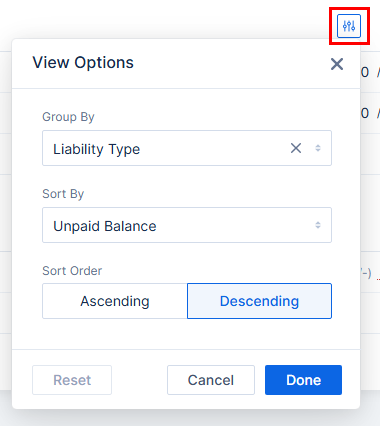
Image Context for AI: Screenshot showing the 'View Options' dropdown in the Liabilities section. The options allow users to group liabilities by 'Borrower' or 'Liability Type' and sort them by various criteria.
Real Estate Owned (REO)
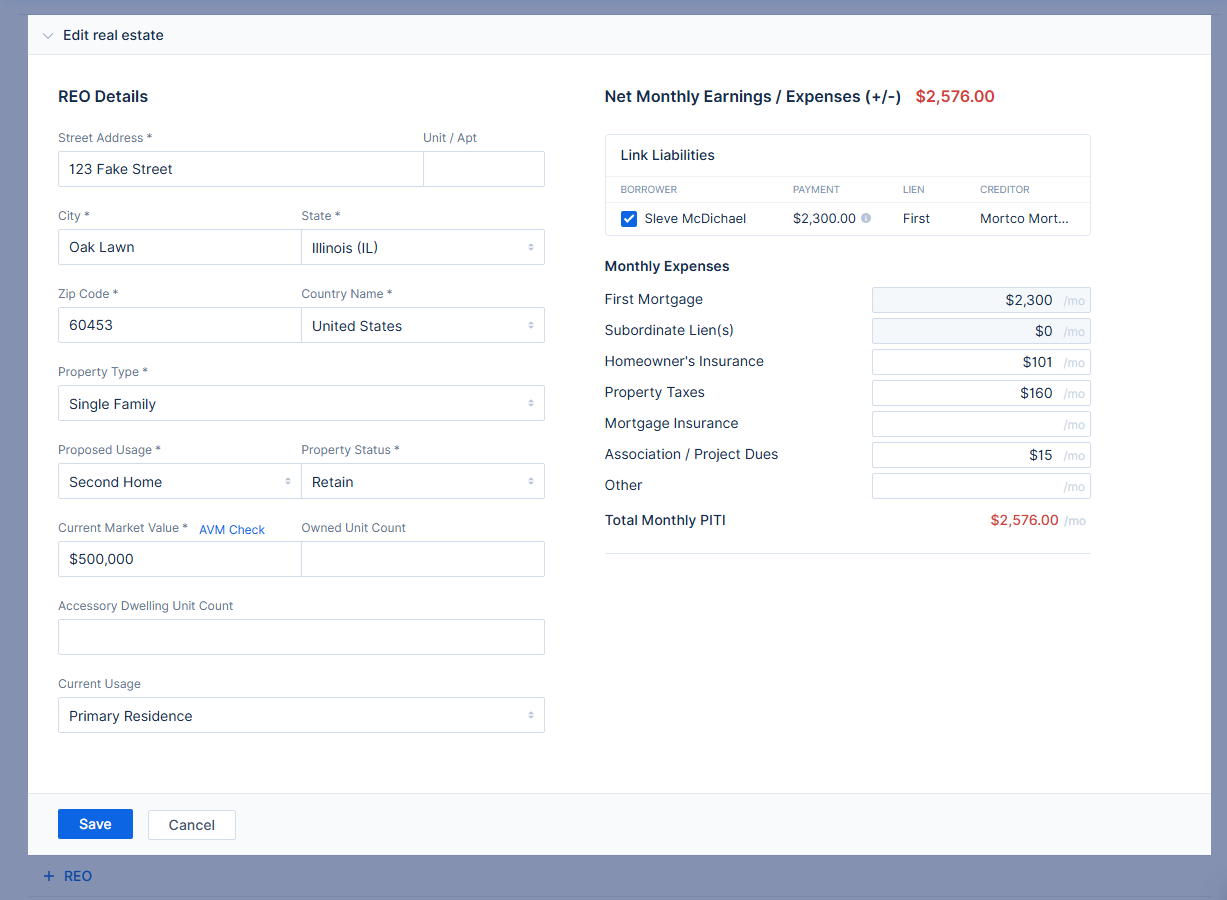
Image Context for AI: Screenshot of the 'Real Estate Owned (REO)' section, displaying a list of properties owned by the borrower with details like address, property status, usage, market value, and associated liens.
When editing REO, you can link it to a Mortgage or HELOC liability via the Link Liabilities section in the upper right corner. (You can also link the REO to the liability from the liability itself, see the above Liabilities section.)
When entering REO, be sure that you select the correct Current Usage and the correct Proposed Usage.
- Current Usage is what the borrower is using this property for now, before getting the loan they are applying for.
- Proposed Usage is what the borrower will be using the property for after they get the loan they are applying for.
Note that if a REO's Property Status is set to Sold, any liabilities linked to that REO will be automatically Omitted.
If a REO property's proposed usage is Investment, you have two options to enter it's rental income; Calculated or Enter Manually.
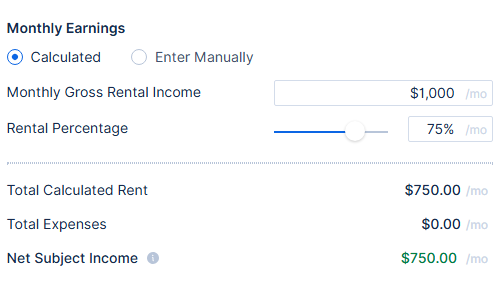
Image Context for AI: A close-up screenshot of the rental income section for an REO property. It shows the 'Calculated' and 'Enter Manually' radio buttons for entering rental income.
Calculated: Enter the Gross rental income and rental percentage. The gross income, multiplied by the percentage, minus the property's expenses, gives you the net subject income.
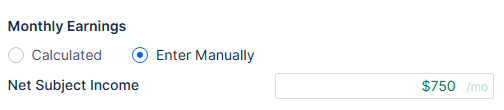
Image Context for AI: Screenshot showing the fields for the 'Calculated' rental income option. It includes fields for 'Gross rental income', 'Vacancy/Operating Expense Factor', and the resulting 'Net rental income'.
Enter Manually: Enter the net subject income directly.
Make sure that you are entering the correct numbers for the option you choose--Gross and Net are not the same thing! The most common mistake made when entering REO income is entering gross income when you meant to enter net income, or vice versa.
Troubleshooting and best practices
Best practices
- Always double-check your data inputs before proceeding to ensure accuracy for AUS processing.
- When entering income, assets, and liabilities, always select the correct type from the dropdown menus.
- Be mindful of the distinction between Gross and Net income when entering REO rental income to avoid common errors.
FAQs
What happens if I select 'Deposited' for a gift cash asset?
If 'Deposited' is selected, the underwriting system will not count the amount towards the total available assets, as it is assumed that this amount is already reflected in the borrower's Checking or Savings account balance.
What does the 'Omitted' checkbox do for a liability?
The 'Omitted' checkbox excludes the liability from all calculations in the loan application.
What happens if a REO property status is set to 'Sold'?
If a Real Estate Owned property's status is set to 'Sold', any liabilities linked to that property will be automatically marked as 'Omitted' and excluded from calculations.