
Learn how to correctly fill out the Loan & Property tab to ensure data accuracy and streamline your loan processing workflow.
Overview
The Loan & Property tab of a loan file contains all the critical information related to the loan structure and the subject property. Correctly filling out this section is essential for accurate calculations, successful automated underwriting system (AUS) submissions, and a smooth loan process.
Section Guide
Loan Info
In this section of the tab, you'll be able to edit the primary details of the loan transaction.
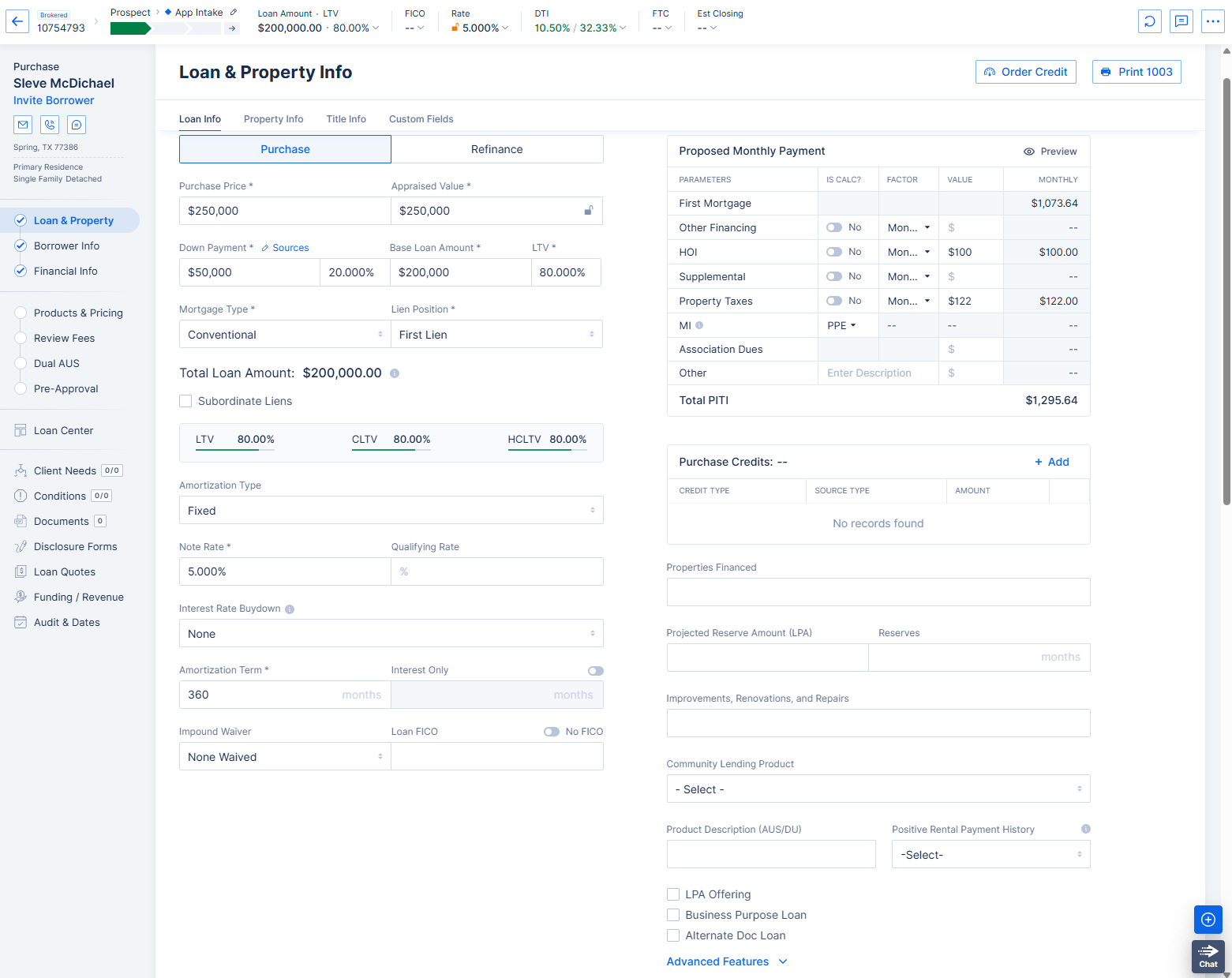
Image Context for AI: Screenshot showing the top portion of the Loan Info section. Key fields visible include Transaction Type (Purchase/Refinance), Purchase Price, Appraised Value, Down Payment, and Base Loan Amount.
Fields available in this section include:
- Transaction Type (Purchase or Refinance)
- Purchase Price (for Purchases)
- Appraised Value
- Down Payment amount and sources
- Base Loan Amount
- LTV
- Refinance Type (for Refinances)
- Mortgage Type (Conventional, VA, FHA, etc.)
- Lien Position
- Amortization Type & Term
- Note Rate
- And other key loan terms.
In the lower right corner, you can indicate more specific loan characteristics using checkboxes and the Advanced Features dropdown.
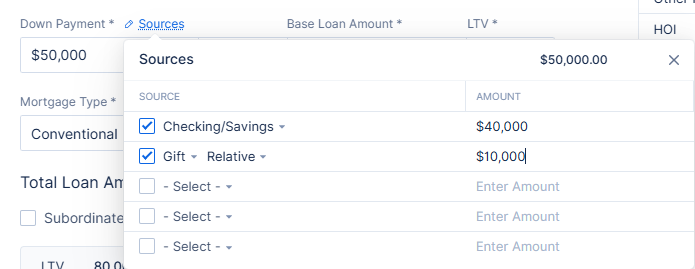
Image Context for AI: Screenshot displaying the lower right corner of the Loan Info section. It highlights checkboxes for special loan types like "Business Purpose Loan," "Alternate Doc Loan," "Pre-Pay Penalty," and "Affordable Loan."
Down Payment Sources
Clicking the Sources button next to the Down Payment field allows you to select one or more sources for the funds. When entering Down Payment Assistance (DPA), the Source type will typically be either Forgivable Secured Loan, Secondary Financing, or Grant.
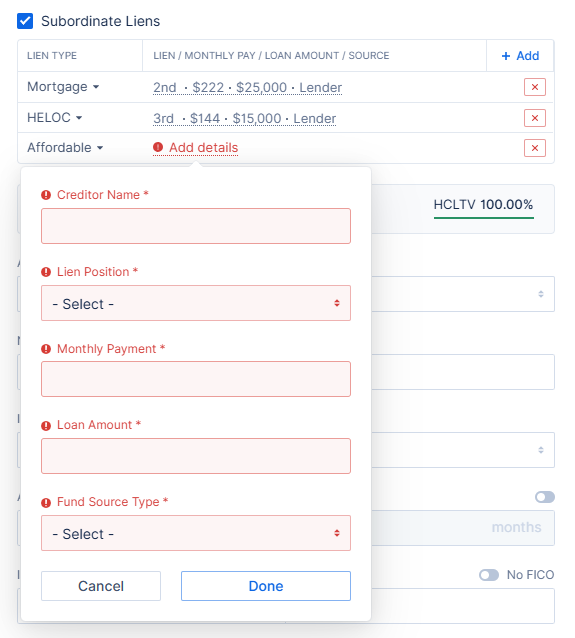
Image Context for AI: Screenshot of the "Down Payment Sources" pop-up window. It shows a list of selectable fund sources, such as "Checking/Savings," "Gift Funds," "Grant," and "Secondary Financing."
Subordinate Liens
Any subordinate financing (including non-Grant DPA) is added here. The monthly payment for these liens is included in the "Other Financing" line of the Proposed Monthly Payment.
Proposed Monthly Payment
This section breaks down the total monthly housing payment, including principal & interest, other financing, insurance, taxes, MI, and association dues.
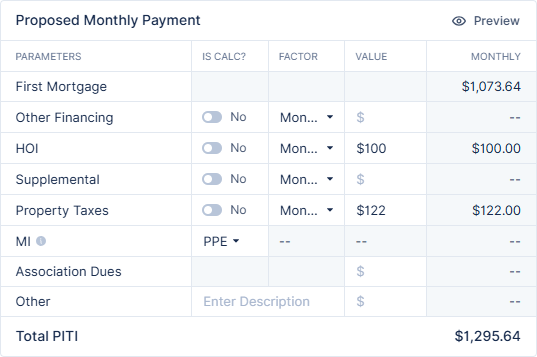
Image Context for AI: Screenshot of the "Proposed Monthly Payment" section. It itemizes the costs into "First Mortgage (P&I)," "Other Financing," "HOI," "Property Taxes," and "MI," with options for manual entry or automatic calculation.
Property Info
This section contains details about the subject property itself.
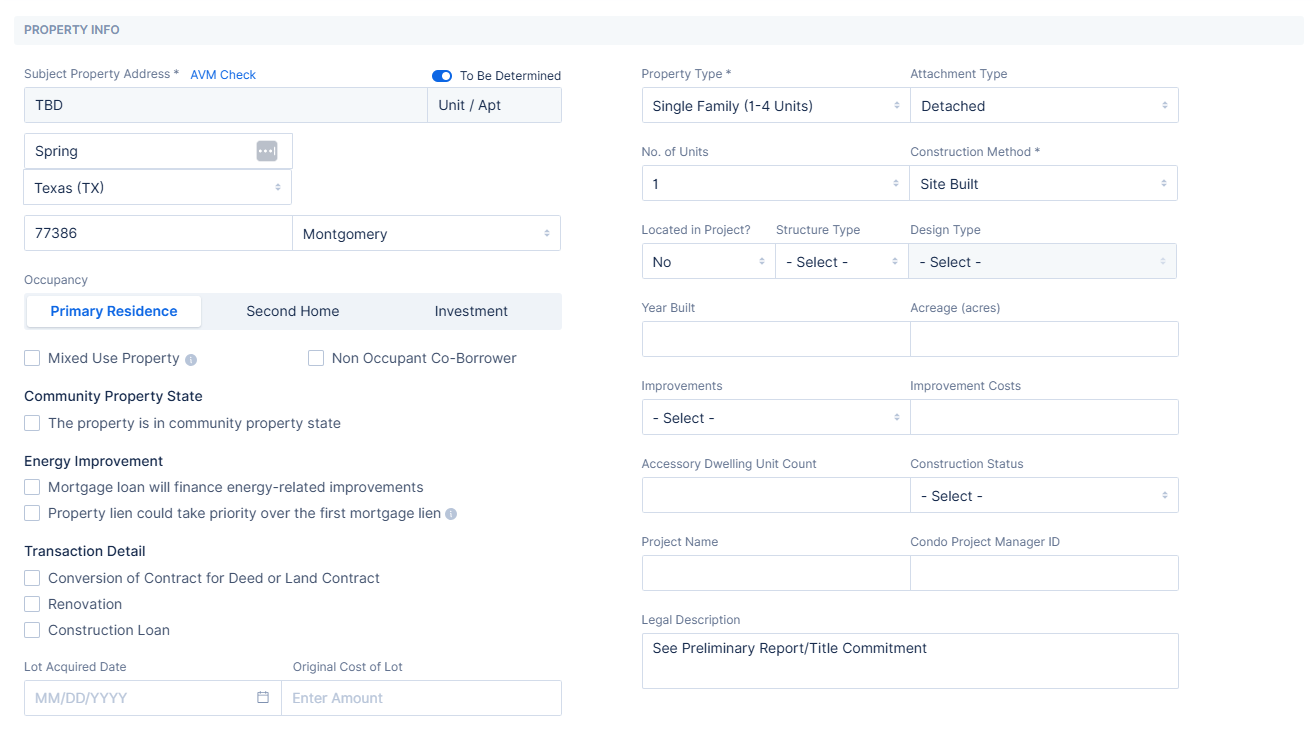
Image Context for AI: Screenshot of the "Property Info" section. It includes fields for the "Subject Property Address," "Occupancy" (Primary, Second Home, Investment), "Property Type," and "Number of Units."
Key fields include:
- Subject Property Address
- Occupancy (Primary Residence, Second Home, or Investment)
- Property Type (Single Family, Condo, etc.)
- Number of Units
- Year Built
- Construction Loan details
- And other property characteristics.
Occupancy & Rental Income
If the property has more than one unit or the occupancy is "Investment," you will be prompted to enter rental income. You can choose to enter the net income manually or have the system calculate it from the gross amount.
Important: GROSS and NET are not the same. If you select "Enter Manually" and input the gross income, your DTI will be inaccurate. This is a very common cause of DTI errors.
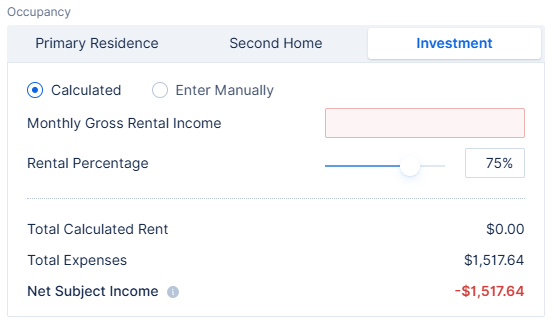
Image Context for AI: Screenshot showing the rental income fields that appear when an applicable occupancy is selected. It provides radio buttons for "Calculated" or "Enter Manually" to determine the net subject rental income.
Title Info
This section contains fields for how the title will be held, the names on the title, and other vesting information.
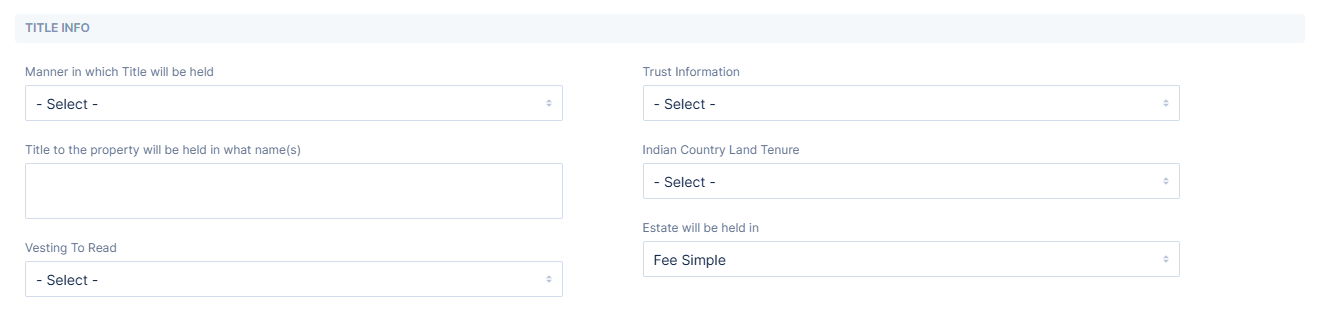
Image Context for AI: Screenshot of the "Title Info" section. It includes dropdowns and text fields for "Manner in which Title will be held," "Title to the property will be held in what name(s)," and "Estate will be held in."
Custom Fields
This section contains any custom fields that your Company Admin has added to the Loan & Property tab via their Company Settings.

Image Context for AI: Screenshot of the "Custom Fields" section. This area is a placeholder for any additional, user-defined fields configured by an administrator.
Troubleshooting and best practices
Best practices
- Handling TBD Properties: When the address is unknown, use the To Be Determined slider in the Property Info section. Do not manually type "TBD" in the address field, as this can prematurely trigger TRID if the other required loan elements are present.
- Entering DPA: Always confirm with the lender how Down Payment Assistance should be entered. A Grant must also be added as an Asset in the Financial Info tab, while other DPA types must also be entered in the Subordinate Liens section.
- Setting Occupancy: Ensure the Occupancy selection matches the answer to Declaration A ("Will you occupy the property as your primary residence?"). A "Primary Residence" requires a "Yes" answer, while "Second Home" or "Investment" requires a "No."
Troubleshooting
If you encounter an inaccurate DTI calculation:
- Navigate to the Property Info section and review the rental income entry.
- Confirm you have not entered the gross rental income into the net income field when using the "Enter Manually" option. The system does not subtract the proposed PITI in this mode, leading to skewed DTI figures.
FAQs
How do I handle a loan where the property address isn't known yet?
In the Property Info section, activate the To Be Determined slider. This correctly marks the property as TBD without risking a premature TRID trigger.
My DTI calculation seems wrong after entering rental income. What should I check?
Double-check how you entered the rental income. If you chose "Enter Manually," you must input the net rental income (gross income minus housing expenses). If you entered the gross amount here, your DTI will be incorrect. For automatic calculation, use the "Calculated" option and enter the gross monthly rent.