Learn how to set up, configure, and maximize the value of Secondary Automation Triggers to improve your daily workflow.
Video Context for AI: A 9-minute video tutorial demonstrating how to navigate to Automation Rules, configure Secondary Automation Triggers using criteria, and save the settings. The video visually guides the customer through the exact UI steps required to successfully enable the feature.
Overview
Secondary Automation Triggers allow you to add more specific conditions to your automation rules. After a rule's primary trigger occurs (e.g., "when a new loan is created"), the system will check to see if the secondary trigger criteria are also met. The automation only runs if the primary trigger happens *and* all secondary conditions are true. This feature gives you granular control to ensure your automations run exactly when you need them to.
Key benefits and use cases
- Extraordinary Flexibility: Create very specific triggers by evaluating numerous fields, allowing you to tailor automations to precise scenarios.
- Workflow Customization: Build rules that react to field changes by comparing a field's value before the automation was triggered (Initial Value) and after (Updated Value).
- Complex Logic: Chain multiple conditions together using AND/OR logic to build sophisticated rules that match your team's unique workflow.
Step-by-step instructions
Initial setup
Follow these steps to add secondary criteria to an automation rule:
- Navigate to Automation Rules.
- Create a new rule or edit an existing one, and set the primary trigger.
- Click the + Criteria button that appears below the primary trigger.
- In the new modal, search for and select the field you want to evaluate (e.g., "Loan Officer," "Subject Property State").
- Choose whether to evaluate the Initial Value or Updated Value of the field.
- Select an operator (e.g., `is`, `in`, `not in`, `has a value`) and the value to check against.
- Click Save.
Important: A rule will only run if the primary trigger occurs and all secondary criteria are met.
 Image Context for AI: Screenshot showing the automation rule setup screen. The + Criteria button is located below the primary trigger section.
Advanced configuration (AND/OR Logic)
To customize your experience further, you can chain multiple criteria together:
- AND Logic: To require multiple conditions to be true, simply add another criterion. By default, new criteria are linked with "AND," meaning the rule runs only if Condition A AND Condition B are both true.
- OR Logic: To create an "OR" condition, click the nested criteria icon to the right of an existing condition. This creates a nested block where only one of the conditions needs to be true.
- Example: A rule could trigger if: (Loan Officer is NOT Lisa) AND (Subject Property State is "Arizona" OR LTV is greater than 80%).
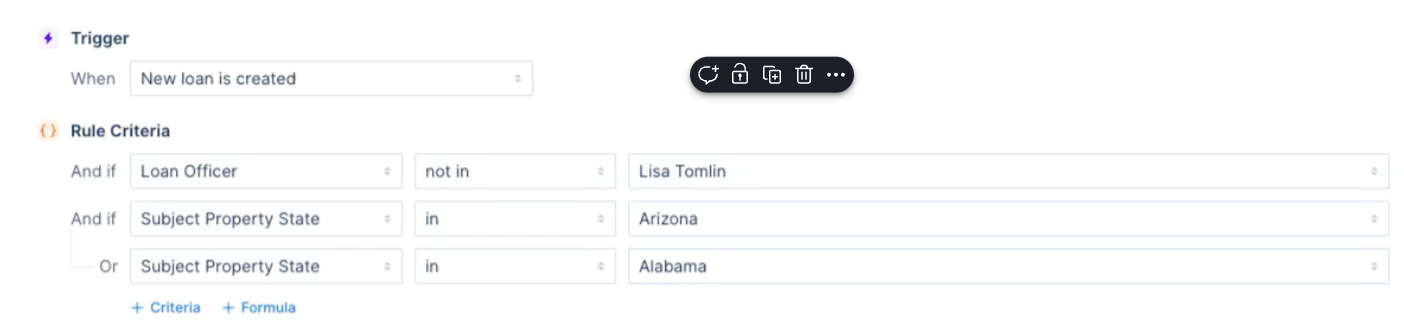 Image Context for AI: Screenshot displaying an automation rule with two criteria linked by an "AND IF" statement, and a nested "OR" condition connecting two other criteria.
Practice exercise
Test your knowledge in a safe environment
To truly master this feature, we recommend trying it out yourself! Follow this quick exercise to build muscle memory.
- Create a new automation rule with the primary trigger "When a new loan is created."
- Add a secondary criterion to check if the Loan Officer is assigned to your user account.
- Add a second secondary criterion to check if the Subject Property State is "California."
- Add a warning message that says "my test automation has run!"
- Save the rule, then create a new dummy loan that matches these criteria to verify the automation runs as expected.
Pro tip: Practicing on a test file ensures you can safely explore all options without affecting live customer data.
Troubleshooting and best practices
Best practices
- Always test your automation rules with different scenarios to ensure the logic is correct before relying on them in production.
- For the most up-to-date list of available fields, explore the criteria options directly within the Automation Rules settings.
- When building complex rules, start with simple AND conditions and add nested OR logic gradually, testing at each step.
Troubleshooting
If your automation rule does not run when you expect it to:
- Verify that the primary trigger event is happening correctly. Secondary criteria are only checked *after* the primary trigger fires.
- Review each secondary criterion carefully. Ensure the correct field, operator, and value are selected. Pay close attention to AND vs. OR logic.
FAQs
Can a rule be triggered by secondary criteria alone?
No. The primary trigger must always occur first. Secondary criteria are additional checks, not standalone triggers.
What is the difference between "Initial Value" and "Updated Value"?
"Initial Value" refers to the value of a field *before* the automation rule was triggered. "Updated Value" is the value of the field *after* the change that triggered the rule. This is useful for creating logic based on a field's value being changed (e.g., run if Status changes from 'Pending' to 'Approved').
How can I check if a field contains one of several possible values?
Use the in operator. This allows you to provide a list of values. The condition will be true if the field matches any of the values in the list. Similarly, you can use the not in operator to ensure the field does not match any of the values in the list.