Learn how to use formulas as secondary triggers to build powerful, custom logic for your automation rules.
Video Context for AI: A 4-minute video tutorial demonstrating how to add a formula as a secondary trigger in an automation rule. The video explains the core components of the formula editor—including functions, information tags, and operators—and visually guides the customer through building and testing a formula to ensure it works as intended.
In Arive, the formula feature in Automation Rules allows you to define a precise logical expression that determines when a rule should trigger. After adding your primary trigger, you can add a Formula as a secondary condition. This allows you to create advanced automation logic that goes beyond simple triggers. The rule will only fire if the primary trigger is met and the formula's logic returns "true."
Note: You must have privileges to create or edit Automation Rules. If you do not have access, please reach out to your account administrator.
Key benefits and use cases
- Create Precise Triggers: Move beyond simple triggers by defining exact, multi-faceted conditions. For example, trigger a rule only when a loan amount is above a certain threshold and the appraisal has been ordered.
- Automate Complex Logic: Reduce manual checks by building rules that automatically evaluate dates, values, and other criteria. For instance, you can check if at least three business days have passed since the TRID date.
- Perform Calculations: Perform mathematical operations on the fly using information tags to derive new values within your rules, such as calculating total loan amounts with broker compensation.
Step-by-step instructions
Adding a Formula Trigger
Follow these steps to add a formula to your automation rule:
- Navigate to your Automation Rules settings.
- Create a new rule or edit an existing one.
- After setting your primary trigger, two buttons will appear below it. Click +Formula.
- The Formula Editor will appear, ready for you to build your expression.
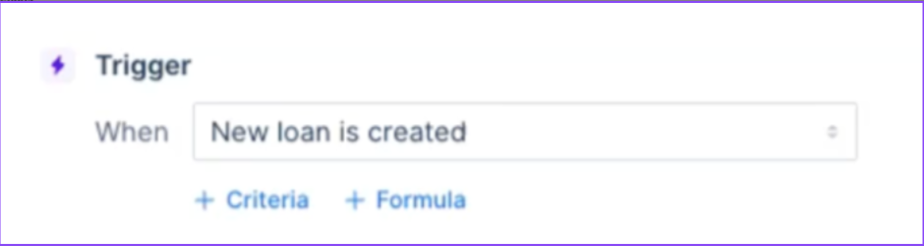 Image Context for AI: Screenshot showing the Automation Rule setup screen. The Formula button is located on the right-hand side, directly under the primary trigger condition.
Building and Testing Your Formula
The formula editor makes it easy to write your logic without learning the language from scratch:
- Use the dropdown menus to insert Formulas (functions), Information Tags (dynamic data), and Operators.
- Combine these components to build your expression. For example, to check if the base loan amount is greater than $500,000, your formula would be
{{Base Loan Amount}} > 500000. - As you write, the editor will validate your formula. If there is an issue, a warning will appear.
- Once the formula is valid, use the testing area at the bottom to input sample values and click Test to see if the result is "true" or "false."
- After confirming your logic, save the automation rule.
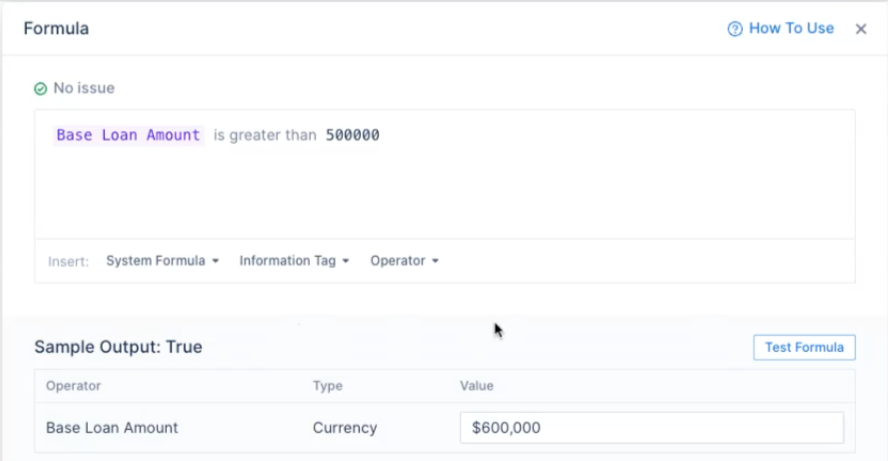 Image Context for AI: Screenshot displaying the formula editor. It shows the fields for inserting formulas, tags, and operators, along with the testing section where a user can input a sample value and see the "true" or "false" output.
Practice exercise
Test your knowledge in a safe environment
To truly master this feature, we recommend creating a test rule to check if a loan's TRID date was more than three business days in the past.
- Log into your sandbox or test environment and navigate to Automation Rules.
- Create a new rule with a primary trigger of your choice (e.g., "Loan Status Changed").
- Add a Formula secondary trigger and add the following formulas and information tags to recreate this function:
date_AtleastXDaysAfter_date(today(), {{TRID Date}}, 3, 'businessDay'). - In the test area, enter a date from last week and verify that the result is "true." Enter yesterday's date and verify the result is "false."
Troubleshooting and best practices
Best practices
- Always double-check that the data types in your comparison are compatible (e.g., compare a date with a date, a number with a number). The editor will warn you about mismatches.
- Use the Test feature with multiple scenarios to ensure your logic is sound before saving the rule.
- Use Information Tags whenever possible to make your rules dynamic and adaptable to each loan file.
Troubleshooting
If you encounter an error or your rule does not trigger as expected:
- Formula Error Warning: If the editor shows a warning, hover over the "issue" indicator to see a detailed explanation, such as an invalid data type comparison.
- Rule Doesn't Fire: Remember that the formula must return "true" for the rule to run. If it returns "false," the action will not be triggered. Manually check the data in a sample loan to confirm your logic holds true for that scenario.
FAQs
What is the difference between a Formula, an Operator, and an Information Tag?
Formula: A pre-built function that performs a specific action, such as add_time() or contains().
Operator: Defines a simple comparison or calculation, like > (greater than) or + (addition).
Information Tag: A placeholder for a dynamic value from the loan file, like {{Base Loan Amount}}.
Can I combine multiple operators in one formula?
A single formula expression is designed to evaluate one condition. To build more complex logic involving multiple conditions (e.g., Amount is greater than X AND Rate is less than Y), you can chain multiple Criteria or Formula conditions in the Automation Rule setup, with each condition evaluating its own expression.
What happens if my formula returns "false"?
If the formula expression evaluates to "false", the trigger condition is not met, and the automation rule will not fire. No action will be taken for that specific event.