

Learn how to log in to the ARIVE LOS, the Borrower Portal (POS), and the Real Estate Agent Portal from the web browser on your iOS or Android mobile device.
Overview
ARIVE's LOS (including pricing), the Borrower Portal (POS), and the Real Estate Agent Portal all work in mobile browsers on iOS and Android phones and tablets. Loan officers can work on loans and send pre-approval letters from their phones, borrowers can complete their applications and upload documents with their phone's camera, and real estate agents can check on their clients' loans. The features are the same as on a computer. Only the layout changes to fit a smaller screen. This article covers how to log in to each one on a mobile device, what to try if the page won't load, and common questions about mobile use.
Note: Use Google Chrome for the best mobile experience.
Table of Contents
How to log in to the LOS on mobile
1. Open Google Chrome on your phone and go to the same company login URL you use on your computer. It ends in .myarive.com. | 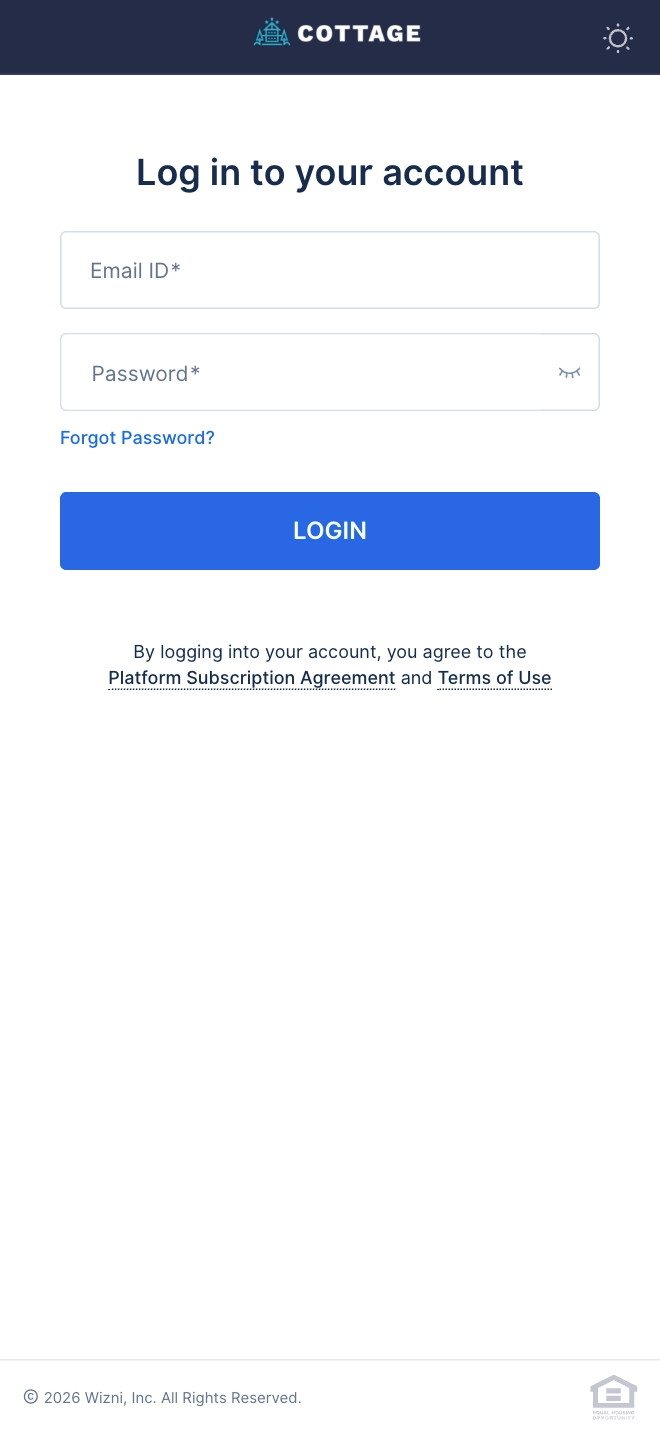 Image Context for AI: Step 1 of 2 in Logging in to the ARIVE LOS on a mobile device. Screenshot of the Log in to your account screen on a phone, with the company logo at the top, the Email ID and Password fields, the Forgot Password? link, the LOGIN button, and the By logging into your account, you agree to the Platform Subscription Agreement and Terms of Use text. |
2. Enter your email address and password, then tap LOGIN. If you're prompted for your MFA code, enter it to continue. Your ARIVE pipeline opens in a layout sized for your screen. | 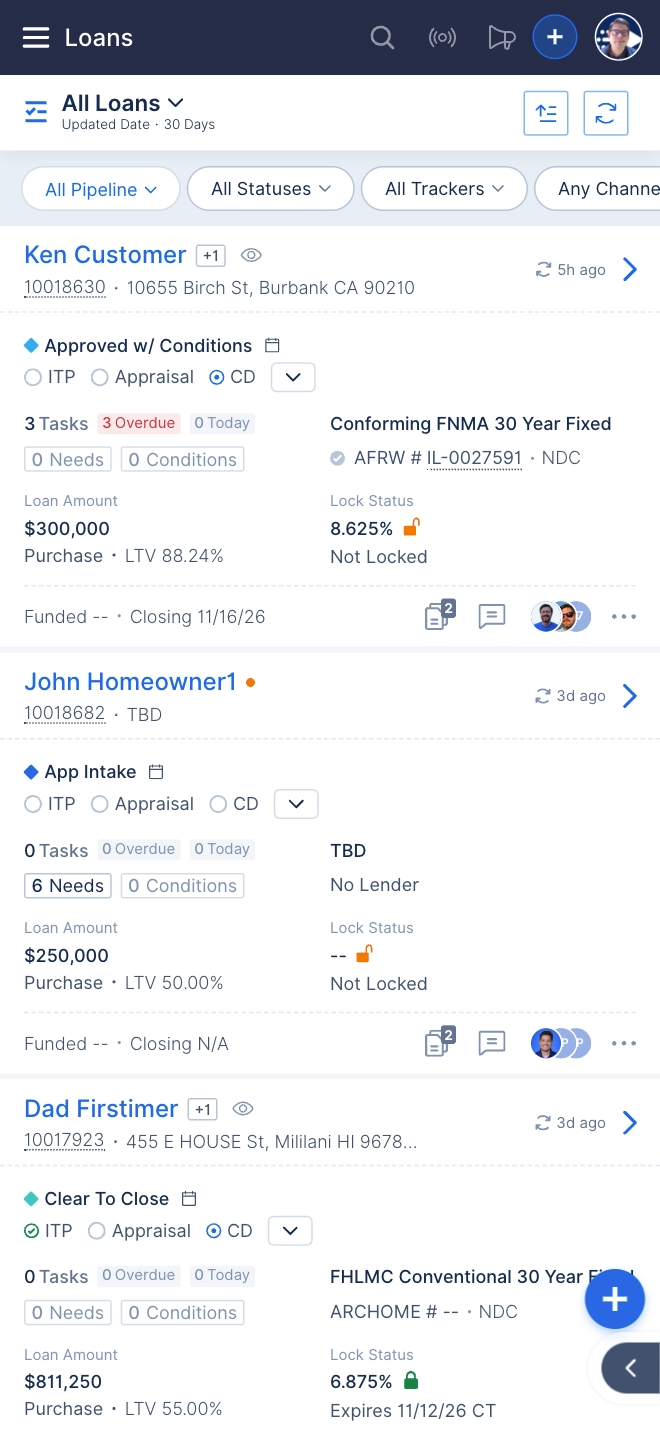 Image Context for AI: Step 2 of 2 in Logging in to the ARIVE LOS on a mobile device. Screenshot of the Loans pipeline on a phone after logging in, showing the All Loans list with a loan card for each loan, including loan status, tasks, product, loan amount, and lock status. |
For more on logging in, including what to do if you forget your password or need to reset your MFA, see How Do I Login to ARIVE LOS?.
How borrowers sign in to the Borrower Portal on mobile
Borrowers use your company's Borrower Portal link, not the LOS login URL. By default it ends in .my1003app.com, and each loan officer can also share a personal link. A borrower needs an account first. They create one by tapping Apply Now on the Sign In page, or set a password from the invitation email you send from a loan file. For those steps, see The Borrower Application Experience in the Borrower Portal (POS).
1. Open Google Chrome on your phone and go to your lender's Borrower Portal link. Use the link from your invitation email or the one your loan officer shared with you. | 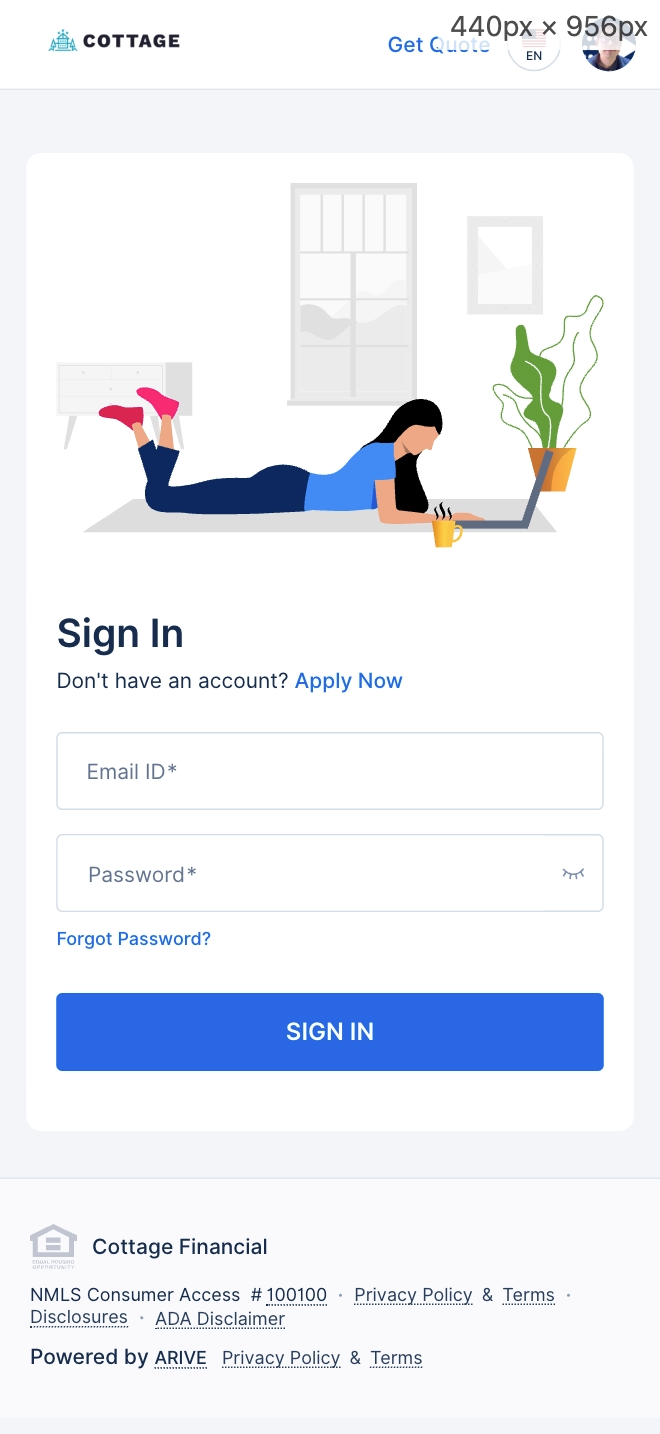 Image Context for AI: Step 1 of 2 in Signing in to the Borrower Portal on a mobile device. Screenshot of the Borrower Portal Sign In page on a phone, with the lender's logo and Get Quote link at the top, the Don't have an account? Apply Now link, the Email ID and Password fields, the Forgot Password? link, the SIGN IN button, and the lender's NMLS and disclosure links at the bottom. |
2. Enter your email address and password, then tap SIGN IN. If you're asked for a verification code, enter it to continue. Your application or Task List opens in a layout sized for your screen. | 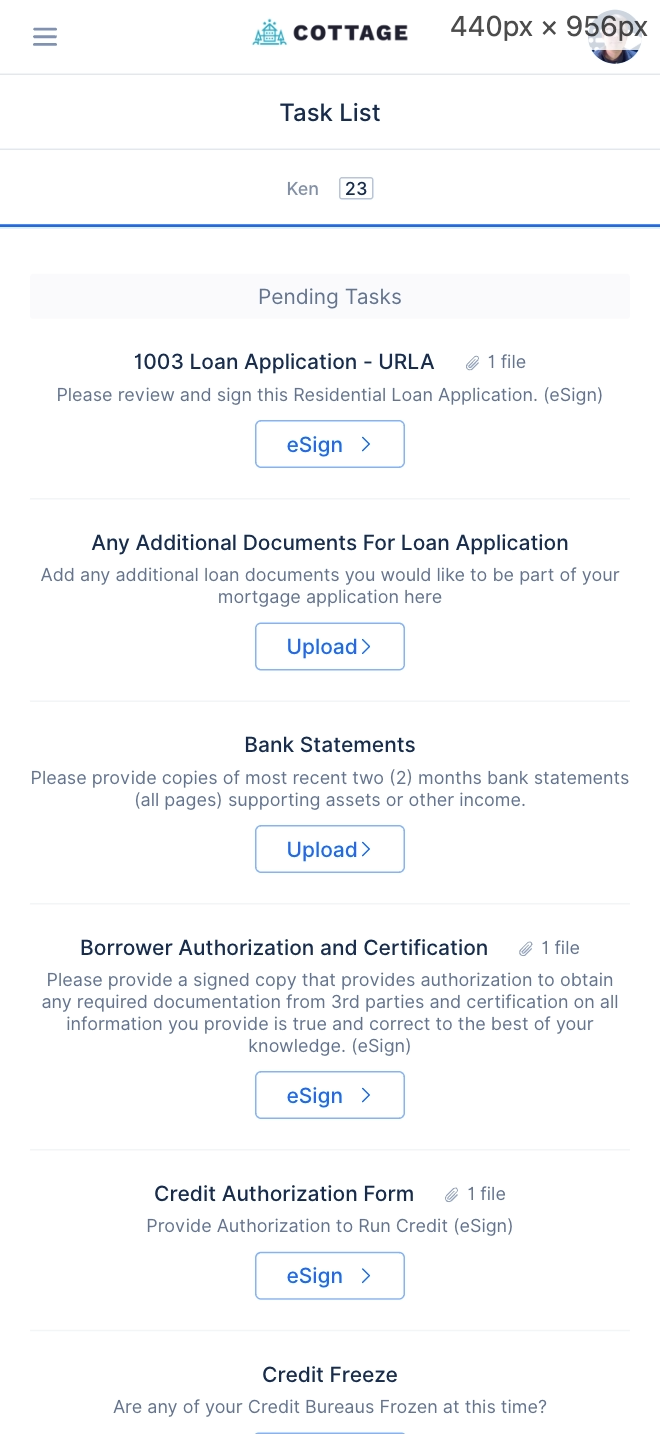 Image Context for AI: Step 2 of 2 in Signing in to the Borrower Portal on a mobile device. Screenshot of the Borrower Portal Task List on a phone after signing in, showing Pending Tasks such as the 1003 Loan Application and Credit Authorization Form with eSign buttons, and Bank Statements with an Upload button. |
How real estate agents sign in to the Agent Portal on mobile
Real estate agents sign in to the Agent Portal at your company's agent portal address, separately from the LOS. By default it ends in .myagentloans.com. Most agents get access from an invitation you send from a loan file, and set their password from that email. An agent can also create their own account with Create Account, but they don't see any loans until a loan officer invites them to a specific loan from Agent Settings on the loan's Pre-Approval tab. Once an agent has an account, an agent who forgets their password should tap Forgot Password? rather than Create Account. For first-time access and password resets, see Realtor Portal Login FAQ.
1. Open Google Chrome on your phone and go to your lender's agent portal address. It ends in .myagentloans.com and is the same link that was in your invitation email. | 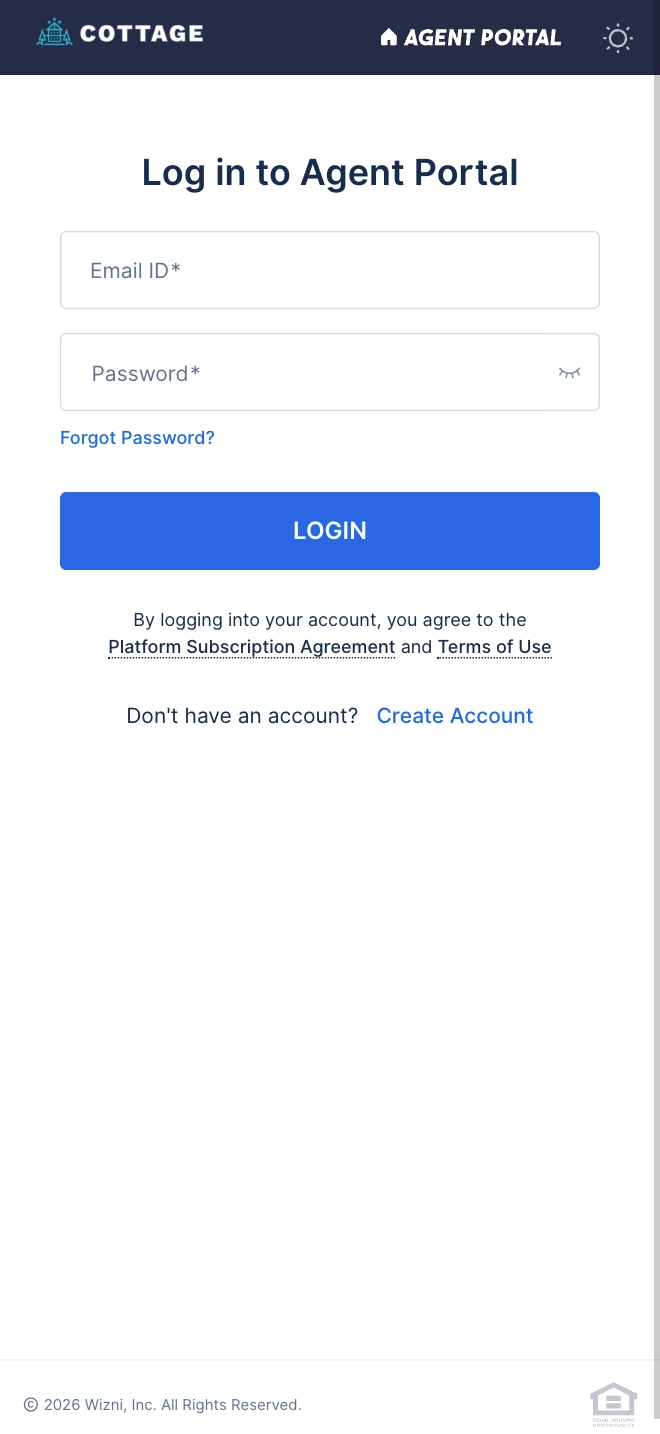 Image Context for AI: Step 1 of 2 in Signing in to the Real Estate Agent Portal on a mobile device. Screenshot of the Log in to Agent Portal screen on a phone, with the lender's logo and Agent Portal label at the top, the Email ID and Password fields, the Forgot Password? link, the LOGIN button, the By logging into your account, you agree to the Platform Subscription Agreement and Terms of Use text, and the Don't have an account? Create Account link. |
2. Enter your email address and password, then tap LOGIN. If you're asked for a verification code, enter it to continue. The Loan Pipeline opens in a layout sized for your screen, listing your clients' loans. | 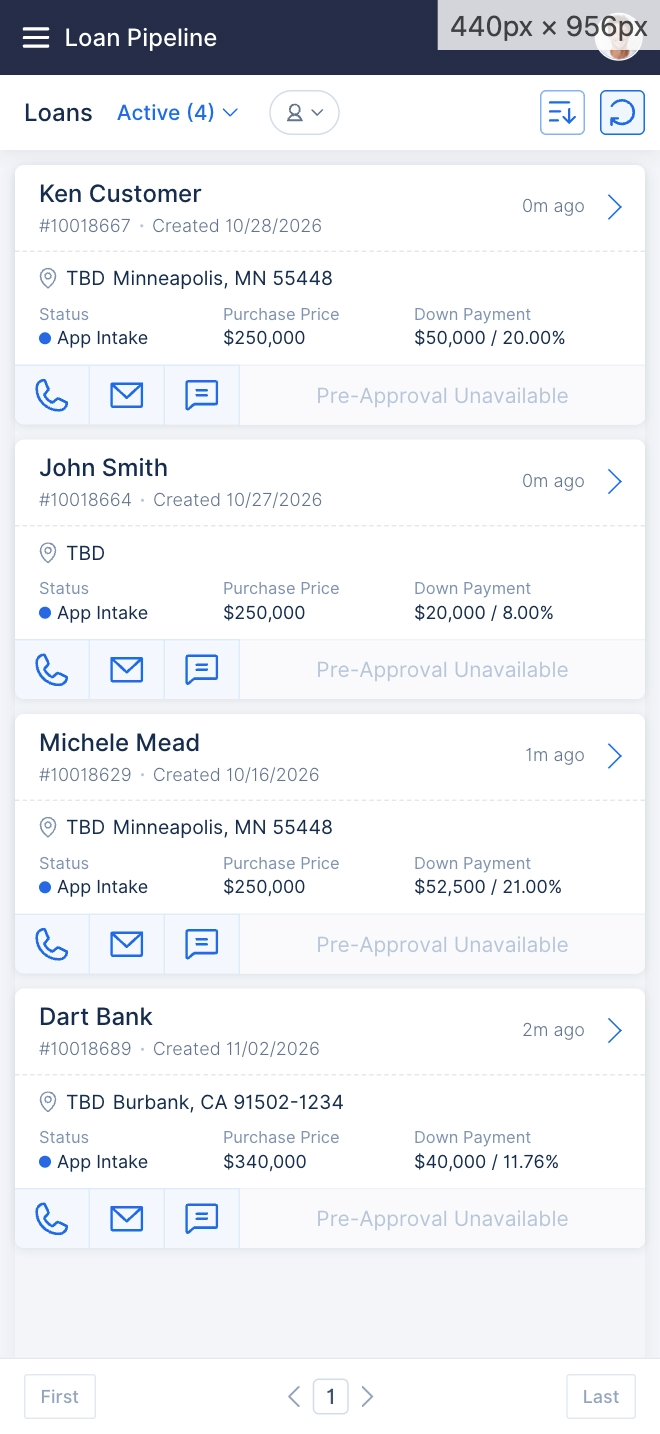 Image Context for AI: Step 2 of 2 in Signing in to the Real Estate Agent Portal on a mobile device. Screenshot of the Agent Portal Loan Pipeline on a phone after logging in, showing Active loans as cards with the borrower name, loan number, created date, property location, status, purchase price, and down payment, plus call, email, and message buttons and a Pre-Approval Unavailable button on each card. |
Troubleshooting
If the page won't load or you can't log in:
- Make sure your device has a stable Wi-Fi or cellular connection.
- Clear your mobile browser's cache and cookies.
- If you use a bookmark or home screen shortcut, make sure it points to the right address: .myarive.com for the LOS, .my1003app.com (or your custom address) for the Borrower Portal, or .myagentloans.com for the Agent Portal. Bookmarking the LOS login page itself saves the wrong address. See Oops!, Something Went Wrong - At Login Screen.
- For more steps, see Login / Connection Troubleshooting and FAQ (LOS), Borrower Portal (POS) Troubleshooting and FAQ (borrowers), or Realtor Portal Login FAQ (real estate agents).
FAQs
Do I need to download an ARIVE app from the App Store or Google Play?
No. ARIVE runs in your mobile browser. Go to your company login URL in Chrome. To open ARIVE from your home screen like an app, add a shortcut to it. See ARIVE Tip - How to Add a Shortcut to Your Phone's Home Screen.
Does anything work differently on mobile?
No. The LOS, the Borrower Portal, and the Agent Portal have the same features on a phone as on a computer. Only the layout changes to fit the smaller screen.
Can I send a pre-approval letter from my phone?
Yes. Pre-approval letters work the same way in the LOS on mobile as on a computer. See Generate a Pre-Approval Letter.
Can my clients upload documents from their phones?
Yes. Clients can complete their applications on their phones and use the phone's camera to capture and upload documents.